 TATER
TATER Settings Reference
Complete reference for all TATER settings pages including branding, tenant credentials, integrations, notifications, agent configuration, features, and compliance zones.
System Settings
SuperAdmin-only global platform configuration. Navigate to Settings > System to manage email delivery and platform-wide defaults.
Microsoft Graph Email
TATER uses Microsoft Graph API to send compliance notifications, SLA alerts, and digest emails. Configure the application credentials that TATER uses to send mail:
| Field | Description |
|---|---|
| Tenant ID | Azure AD tenant ID of the app registration authorized to send email |
| Client ID | Application (client) ID of the Entra ID app registration |
| Client Secret | App registration client secret (stored encrypted at rest) |
| From Address | Email address that notifications are sent from (must be a licensed mailbox in the tenant) |
The Entra ID app registration must have the Mail.Send application permission (Microsoft Graph) with admin consent granted. The From Address mailbox must exist in the tenant.
Branding
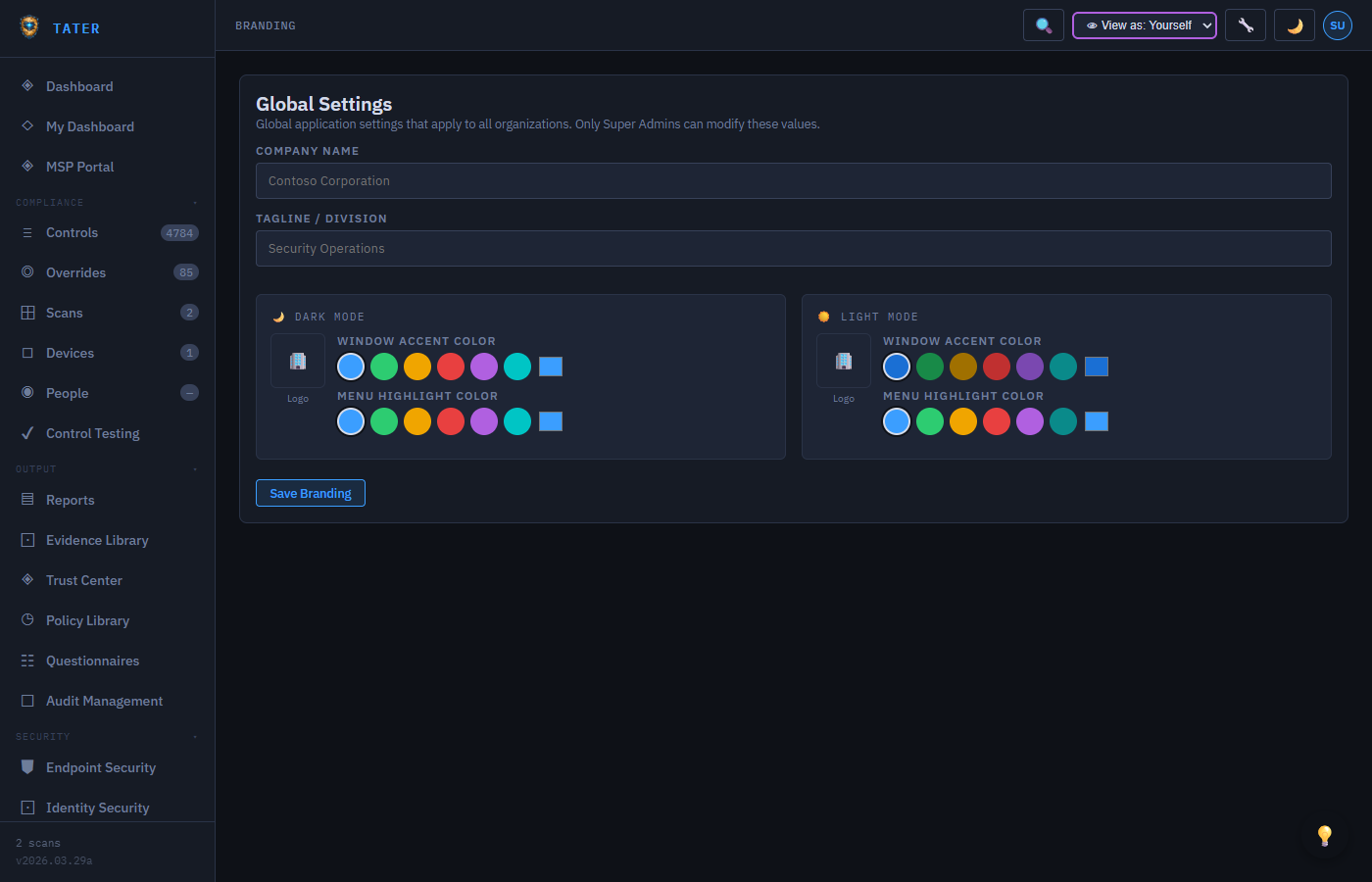
Customize the look and feel of TATER for your organization. Branding settings cascade from tenant-level to org-level.
Branding Fields
| Field | Description |
|---|---|
| Company Name | Displayed in the header, reports, and Trust Center |
| Tagline | Subtitle displayed below the company name |
| Logo (Dark Mode) | Logo image for dark theme backgrounds (PNG, SVG) |
| Logo (Light Mode) | Logo image for light theme backgrounds |
| Accent Color (Dark) | Primary accent color for dark mode (hex value) |
| Accent Color (Light) | Primary accent color for light mode |
Upload separate logos for dark and light mode to ensure readability on both backgrounds. If only one logo is provided, it will be used for both themes.
Email Signatures
Build a branded organization email-signature template that matches your TATER branding, then generate ready-to-paste HTML for your mail client. The same template is surfaced to your end users in My TATER, so everyone in the organization can produce a consistent, on-brand signature without IT having to hand-craft one per person.
Building the Template
- Org branding pulled in automatically: Company name, logo, and accent color are inherited from your Branding settings so the signature stays visually consistent with the rest of TATER.
- Per-person fields: Name, title, phone, and email are filled from the signed-in user's profile when the signature is generated, so each person gets their own details on the shared layout.
- Optional elements: Toggle a tagline, website link, social links, and a confidentiality/disclaimer footer line.
- Live preview: The preview updates as you edit so you can confirm the layout before copying.
Using the Generated Signature
- Edit the template until the preview looks correct.
- Click Copy HTML to copy the generated signature markup to your clipboard.
- In your mail client (Outlook, Gmail, etc.), open the signature editor and paste the HTML into a new signature.
- Set it as the default signature for new messages and replies.
End users don't need access to Settings to use this. The branded signature template is surfaced in My TATER, where each person can generate and copy their own personalized signature using the template you configured here.
Tenant Credentials
Store Microsoft 365 tenant credentials for server-side scanning. Credentials are encrypted at rest in Azure Cosmos DB.
Adding Tenant Credentials
- Navigate to Settings > Tenants
- Click Add Tenant
- Enter the Tenant ID (Azure AD GUID)
- Enter the Client ID from your Entra ID app registration
- Provide the Client Secret or Certificate Thumbprint
- Select the authentication method (Client Secret or Certificate)
- Click Save to store the credentials
Tenant credentials are stored securely in Cosmos DB and are only accessible by the TATER API. They are never sent to the browser. Certificate-based authentication is recommended over client secrets for production environments.
Integrations
SIEM Integration
Forward audit events to your SIEM platform via syslog (RFC 5424 CEF format) or webhook (HMAC-signed):
Syslog Configuration
- Protocol: UDP or TCP
- Host: SIEM server hostname or IP address
- Port: Syslog receiver port (typically 514 for UDP, 6514 for TLS)
- Format: CEF (Common Event Format) for broad SIEM compatibility
Webhook Configuration
- URL: HTTPS endpoint to receive audit events (must be valid HTTPS URL)
- HMAC Secret: Shared secret for signing webhook payloads
- Signature Header:
X-TATER-Signature: sha256=... - Test Button: Send a test event to verify connectivity
API Keys
Generate API keys for runbook authentication and external integrations:
- Open TATER Manage → Connections → API Keys (API key management moved to TATER Manage)
- Click Generate API Key
- Enter a descriptive name for the key
- Copy the full API key immediately (it is only shown once)
- The key is SHA-256 hashed before storage; only the prefix is displayed afterward
Copy your API key immediately after generation. The full key cannot be retrieved later because it is hashed before storage. If you lose the key, you must generate a new one.
Remediation Webhook
Configure the webhook URL for triggering automated remediation via Azure Automation:
- Webhook URL: Azure Automation webhook endpoint for the Run-Remediation runbook
- App ID: The app registration client ID used by the remediation runbook
- Enabled: Toggle to enable/disable automated remediation for the organization
Notifications
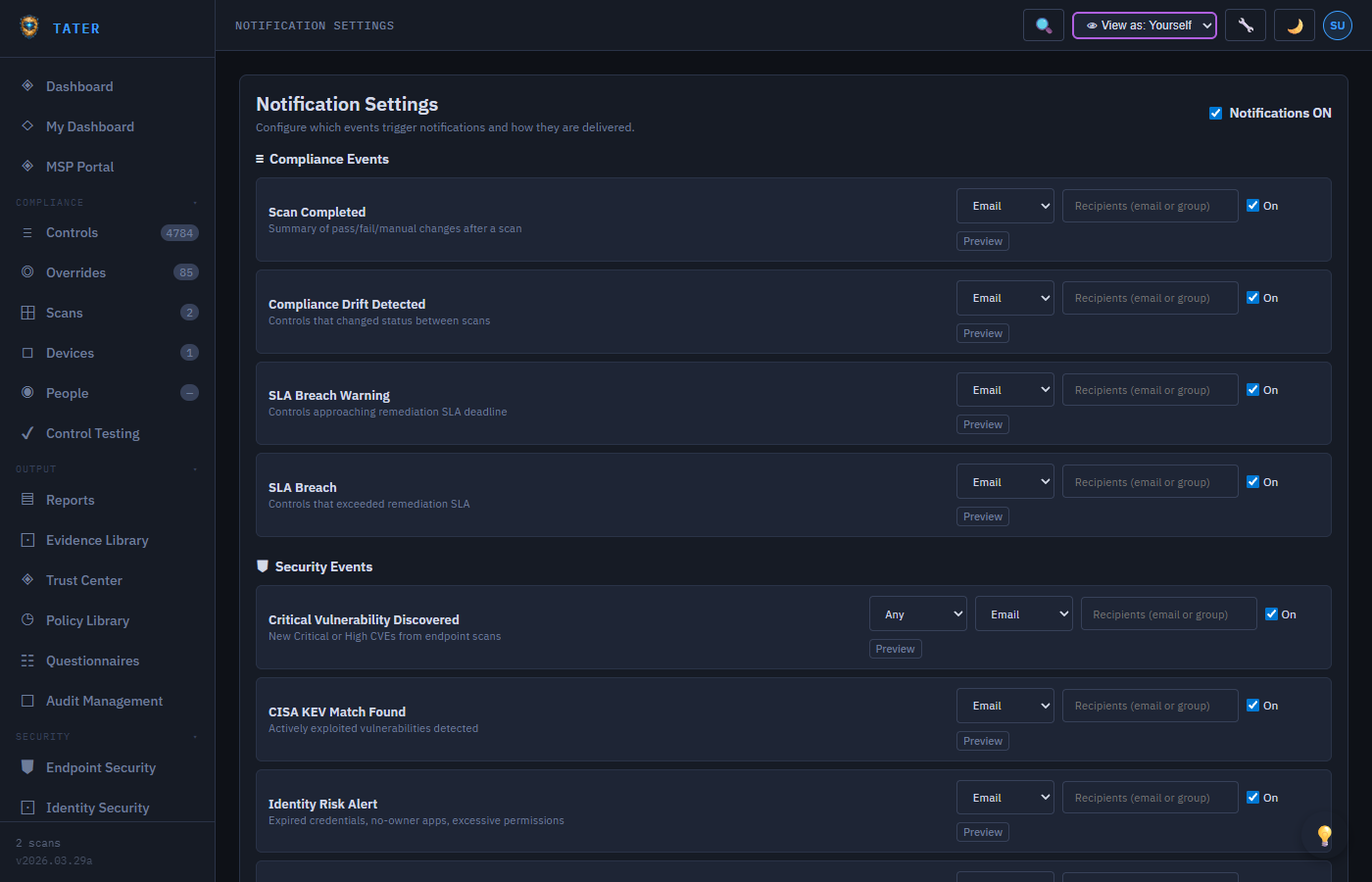
Settings → Notifications (Org Admin; the page lives in TATER Security and is linked from the TATER Manage settings hub) configures per-event notification routing for the organization:
- Master switch: A single Notifications ON/OFF toggle gates every configured event for the org
- Per-event rules: Events are grouped by category (Compliance, Security, GRC, Reports). Each event can be individually enabled/disabled, routed to a channel (Email, or Teams — which suppresses the email and posts to the org's Teams webhook instead), given extra recipients (comma/semicolon-separated addresses or distribution groups, merged with the event's built-in recipients), and — on severity-carrying events — gated by a minimum severity (Any / Critical / High+)
- Delivery Channels: Email and the in-app feed are on by default; optionally add a Microsoft Teams incoming webhook, with an all-events vs. high-severity-only selector
- Delivery Log: The most recent sends across every channel, with status
sent,failed,suppressed, orskipped - Template Preview: Render any notification email template with your org's branding before it goes out
Endpoint Agent
Navigate to Settings > Endpoint Agent to manage the cross-platform TATER Agent. The page is divided into three platform tabs:
Status Overview
- Total Devices: Count of endpoints reporting via the TATER Agent
- Coverage %: Percentage of known devices with an active agent (color-coded: green ≥80%, yellow 40–80%, red <40%)
- Pass Rate: Average compliance pass rate across agent-scanned devices
- Last Scan: Timestamp of the most recent agent-reported scan
Windows Tab
Download the MSI installer and copy silent-install commands for Windows deployment:
# Silent install with API configuration
msiexec /i TATER-Agent.msi /qn APIBASE="https://api.tatersecurity.com/api" APIKEY="your-key" ORGID="your-org-id"

# Intune Win32 detection rule: check registry key HKLM\Software\TATER\Installed
For Intune deployment (Win32 app), use:
- MSI URL:
https://www.tatersecurity.com/Agent/TATER-Agent.msi - Privacy URL:
https://www.tatersecurity.com/privacy.html - Info URL:
https://www.tatersecurity.com/Docs/Help/agent-deployment.html
Linux Tab
Download Linux binaries (amd64 or arm64) and install as a systemd service:
sudo TATER_API_BASE="https://api.tatersecurity.com/api" \
     TATER_API_KEY="your-api-key" \
     TATER_TENANT_ID="your-tenant-id" \
     TATER_ORG_ID="your-org-id" \
     bash install.sh
The service is installed as tater-agent.service and starts automatically on boot.
macOS Tab
Download macOS binaries (Apple Silicon arm64 or Intel amd64) and install as a launchd service. Two install commands are provided - one for each architecture.
Configuration Reference
The config reference card grid shows current values and descriptions for all agent configuration properties: apiBase, apiKey, tenantId, orgId, controlsPath, scanInterval, speedTestInterval, and agentVersion. Click the copy icon next to any value to copy it to clipboard.
Cloud Scanning
Navigate to Settings > Cloud Scanning to manage server-side M365 scanning via Azure Automation and view recent cloud scan status.
Cloud Scan Status
The KPI strip shows the latest cloud scan result: last run timestamp, total controls evaluated, pass/fail/skip counts, and the scheduled next run time.
Azure Runbook Setup Wizard
A 3-step interactive wizard guides you through configuring Azure Automation for the first time:
- Step 1 - Azure Resources: Enter your tenant domain; the wizard auto-generates recommended names for Resource Group, Automation Account, Key Vault, and Storage Account following TATER naming conventions.
- Step 2 - App Registration: Guided walkthrough of creating the Entra ID app registration with required Microsoft Graph permissions (User.Read.All, Policy.Read.All, AuditLog.Read.All, etc.) and Exchange.ManageAsApp for Exchange Online scanning.
- Step 3 - Runbook Configuration: Generates the Azure Automation Variable values and az CLI commands to publish the
Scan-M365Cloudrunbook and configure its schedule.
See the Azure Runbooks Setup Guide for detailed step-by-step instructions.
App Registration
Navigate to Settings > App Registration to review and manage the Entra ID app registration used by TATER for user authentication and Graph API scanning.
| Field | Description |
|---|---|
| Client ID | The application (client) ID of your Entra ID app registration. This is the value that users authenticate against via MSAL.js. |
| Tenant Domain | Your primary Entra ID tenant domain (e.g., contoso.onmicrosoft.com). Used to pre-fill runbook configuration values. |
| Grant Admin Consent | Opens the Microsoft admin consent URL for your app registration. Required once per tenant for application permissions (Graph API, MDE, etc.). |
Click Open Entra Portal to jump directly to the App Registrations blade in the Azure portal for advanced configuration (redirect URIs, certificates, API permissions).
Features
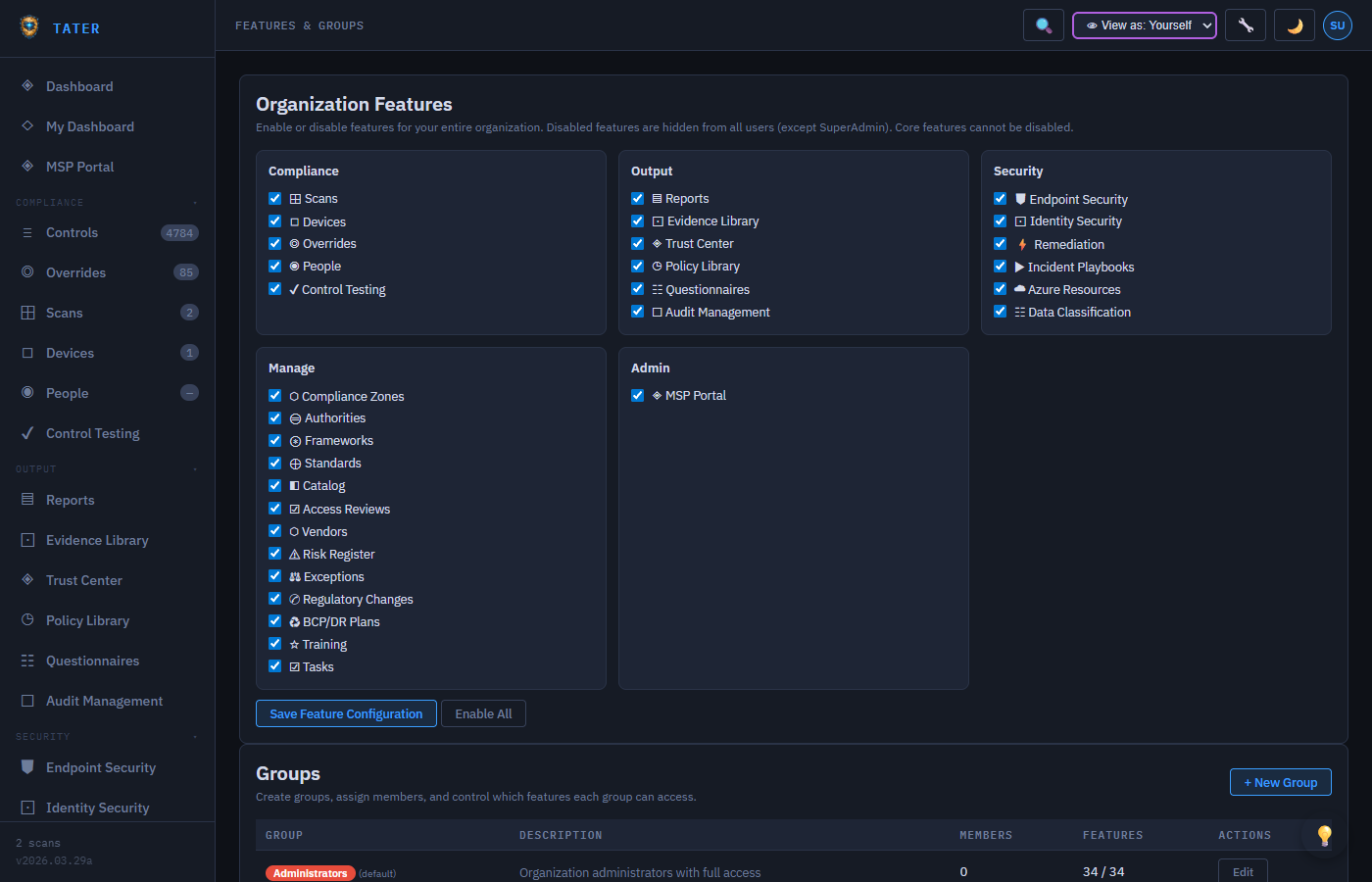
Navigate to Settings → Features to control which platform capabilities are enabled per organization and assign fine-grained access through user groups:
Feature Toggles
Enable or disable individual features for each organization. Disabled features are hidden from the sidebar and cannot be accessed:
- GRC modules (Risk Register, Audits, BCP/DR, Training, etc.)
- Security features (Remediation, Endpoint Security, Identity Security)
- Collaboration features (Tasks, Questionnaires, Feedback)
- Advanced features (Custom Frameworks, Playbooks, Azure Resources)
Commercial Compliance Profile
The Commercial compliance profile toggle (Settings → Features, off by default) is for commercial, non-government organizations. When enabled, DISA STIG and other federal-only controls are treated as ⊘ Not Applicable — out of scope and excluded from your compliance % — instead of sitting as Manual/Not Scanned and dragging your posture with requirements that don't apply to you.
Leave this toggle off if your organization reports against DISA STIG (federal agencies, DoD contractors) — enabling it would exclude the very controls you're accountable for.
User Groups
Create custom user groups and assign feature-level permissions through the permission grid:
- Create groups (e.g., "Auditors", "Compliance Team", "IT Security")
- Assign users to groups
- Toggle read/write access per feature per group
- Groups inherit from the organization's role hierarchy (SuperAdmin, OrgAdmin, Auditor, Viewer)
Compliance Zones
Define which M365 applications are in scope for each organization:
- Add Zone: Create a compliance zone for an application (Exchange, SharePoint, Teams, etc.)
- Primary Flag: Mark zones as "Primary Application" for dashboard prioritization
- Discovered Apps: Auto-discovered zones from endpoint scans are prefixed with
disc- - Scope Control: Controls are filtered based on which zones are active
Scan Schedule
Configure recurring scan schedules within TATER:
- Set frequency: daily, weekly, monthly
- Choose time of day and timezone
- Select scan type: Cloud, Endpoint, or both
- Assign to specific tenant credentials
Recycle Bin
The recycle bin stores soft-deleted items for recovery:
- View deleted scans, controls, overrides, and other items
- Restore items to their original location
- Permanently delete items from the recycle bin (SuperAdmin only)
- Items in the recycle bin are excluded from compliance calculations
Organization Licensing
SuperAdmin-only settings for assigning plan types and seat limits to organizations. Navigate to Organizations, select an organization, and scroll to the Licensing section.
| Field | Description |
|---|---|
| License Type | per-user-all-features (default) or custom. Displayed as a badge on the organization detail. |
Seat Limit (licenseLimit) | Maximum total members allowed. Set to 0 for unlimited. MSPs can set per-client limits from the MSP → Licensing page. |
The Licensing section shows live usage: current member count vs. seat limit, license type, and whether the org is over limit (highlighted in red). MSPs can manage seat limits across all client orgs from the MSP → Licensing page.
Limits are informational by default. Enforcement at the API level is handled separately through provisioning workflows or custom integration.
Remediation Settings
Configure the automated remediation system that triggers PowerShell scripts against your infrastructure when a control fails. TATER supports two remediation domains:
- M365 Cloud (82 scripts) - remediates Entra ID, Exchange Online, SharePoint, Defender, Power BI, Purview, and CISA SCuBA controls against your Microsoft 365 tenant
- Windows Endpoint (1,318 scripts) - remediates CIS Benchmark controls for Windows 11 Enterprise (435), Windows Server 2019 (286), Server 2022 (287), and Server 2025 (310) via the Endpoint Hardening Plan
Navigate to Settings → Remediation to configure the runbook connection.
Enabling Remediation
- Remediation Enabled: Toggle on/off for the organization. When disabled, the Remediate button is hidden from control detail panels.
- Webhook URL: The HTTPS endpoint that TATER calls when a remediation is triggered. This is typically your Azure Automation account's webhook URL for the
Run-Remediationrunbook. - App ID: Optional - the Azure Automation account application ID, used for status polling.
Read-Only Audit Mode
Read-only audit mode (Settings → Remediation) is an org-level switch for least-privilege advisory and consultant engagements. When enabled, all remediation UI is suppressed across the app and the API rejects /remediations/trigger (and other write-execution endpoints), so a read-only engagement can never write to the client tenant or its devices — regardless of what the UI shows.
- Scans, findings, dashboards, and reports remain fully functional.
- Controls still show fix guidance (how to remediate), just never an executable trigger — so auditors can report the fix without performing it.
- Clear indicators: a dashboard banner, a notice on the Remediation page, and adjusted Top Priorities copy.
- Pairs with the read-only-audit scanner permission profile and the Client Audit Report (Leave-Behind) as the advisory deliverable.
Security Considerations
- The webhook URL is validated to be an HTTPS URL pointing to a non-private IP address (SSRF protection)
- Webhook payloads are signed with HMAC-SHA256 (
X-TATER-Signatureheader) - verify this signature in your webhook receiver - Remediation scripts run under the Azure Automation managed identity - scope permissions to the minimum required for each script
- All remediation trigger events and completion status are logged to the Activity Log
See the Security Operations → Automated Remediation guide for full runbook setup instructions, including the two-runbook architecture for Exchange Online remediations.
MSP Portal
Navigate to MSP → Clients to configure client relationships for MSP organizations. This page is visible to SuperAdmins and OrgAdmins of organizations marked as Managed Service Providers. See the MSP Guide for full setup and usage details.
Registering Your Organization as an MSP
- Navigate to Organizations, open your organization's detail panel
- Scroll to the MSP Portal section and enable This is a Managed Service Provider org
- Save. Your org now appears in the MSP → Clients list and MSP-tier access controls are enabled.
Client Access Tiers
Each client relationship uses a three-tier access model that controls what your MSP users can see and do within a client organization:
| Tier | Label | Effective Role | Capabilities |
|---|---|---|---|
| T1 | Monitor | Auditor | Read-only access: scans, controls, reports, dashboard |
| T2 | Operate | OrgAdmin | T1 + overrides, roadmaps, assignments, remediation triggers |
| T3 | Manage | OrgAdmin | T2 + branding, API keys, tenant credentials configuration |
Hierarchy
TATER supports a hierarchical MSP model:
- Root MSP (e.g., TATER Security): Top-level MSP org. Can have direct clients and sub-MSP relationships.
- Sub-MSPs: MSP organizations that themselves manage client orgs. A client org may be associated with the root MSP directly AND with one or more sub-MSPs simultaneously.
- Client orgs: Organizations that receive managed services. Switching your TATER org context to a client org grants you the tier-mapped role automatically - no separate login required.
MSP users switch to a client org using the organization switcher in the TATER header. TATER automatically detects the MSP relationship and grants the appropriate access tier - no additional credentials or invitations required.
Ops Administration Settings (ServiceNow-parity)
TATER Ops admin settings are reached from the Ops app (ops.tatersecurity.com) → Settings sidebar. Each module ships with a "Seed Defaults" action (idempotent) that installs starter content.
Process Profiles
TaskerProfiles drive task field visibility, allowed status transitions, and SLA defaults from an industry standard (ITIL 4 / NIST SP 800-61 / Basic / custom). Seed Defaults installs 5 starter profiles. JSON editor for advanced customization. System profiles can be edited (rename, adjust SLA, add fields) but not deleted because historical tasks reference them. Found under TATER Ops → Settings → Process Profiles. See ITIL Process Profiles guide.
Service Catalog
Administered from TATER Manage → Service Management → Service Catalog. Manage CatalogCategory hierarchy (icons, sort order) and CatalogItem definitions (form schema, fulfillment profile, approval flag, owner team, ETA, default priority, popularity counter). Seed Defaults installs 5 categories + 13 starter items (Laptop / Software Install / App Access / Password Reset / VPN / MFA Re-enrollment / Onboarding / Off-boarding / Software, Hardware, Network & Email issue reports / Shared Mailbox). See Service Catalog Administration.
CAB Boards
Configure Change Advisory Boards: voting members (max 20 with chair / voting / observer roles + alternates), meeting cadence, approval threshold percent (default 50% majority), emergency escalation email. Boards are referenced by change requests during CAB submission. Boards are created and edited from TATER Ops → Service Management → Change Advisory Board via + New CAB Board — there is no separate CAB Boards settings page. See CAB workflow guide.
CMDB Maintenance
Manual CI creation, relationship editing (10 typed relationships with auto-maintained inverses), discovery refresh (re-import from Devices / CloudAccounts / Vendors), and CI retirement workflow. The CMDB underlies Service Portfolio + Major Incident impact + CAB conflict detection. Found under TATER Ops → Service Management → CMDB. See CMDB guide.
Releases
Compose Release records: name, version, scheduled window, release manager, linked change requests, ordered rollout + rollback steps with owners and estimated time, success criteria. Lifecycle status transitions auto-stamp timestamps. Deployment log is auditor + appended. Found under TATER Ops → Service Management → Releases. See Release Management guide.
Activity Log
The Activity Log records every create, update, and delete operation within TATER. See the dedicated Activity Log & Audit Trail guide for full documentation.
Quick reference for the most common use cases:
- Finding who changed a setting: Filter by Entity Type =
settingsand date range - Reviewing override approvals: Filter by Entity Type =
overrideand Action =create - Compliance evidence export: Filter by date range, export to CSV for auditor evidence packages
- SIEM forwarding: Navigate to Settings → Integrations → SIEM to configure syslog (CEF) or webhook forwarding
Usage Analytics
Usage Analytics (visible to SuperAdmin only) provides platform-wide insights into how TATER is being used across all organizations and the marketing site. Navigate to TATER Manage → Audit & Telemetry → Usage Analytics (SuperAdmin only).
What's Tracked
- Page views: Every navigation event in the TATER app is recorded with page name, session ID, and authenticated user context (tenant, org)
- Marketing & docs traffic: The
/analytics-tracker.jsbeacon script on marketing and help pages sends anonymous page views with session IDs (no user identity from unauthenticated visitors) - Session-level: Sessions are scoped per browser tab session using
sessionStorage- no cross-session or cross-device tracking - No PII from anonymous visitors: Unauthenticated page views are stored under
tenantId = 'public'with no user identifier
Analytics Dashboard
- Period filter: 1–90 days (default 30 days)
- Source filter: All traffic, or filter to Marketing, Docs, or App
- KPI cards: Total events, unique sessions, marketing views, docs views, app page views
- Daily trend chart: Per-source bar chart showing traffic volume over time
- Top pages: Most-visited pages across all sources
- Top referrers: External domains driving marketing traffic
- Org usage: App engagement breakdown per customer organization (top page, sessions, events)
Data Retention
Usage telemetry is stored in the UsageTelemetry Cosmos DB container with a 90-day TTL. Events expire automatically - no manual cleanup is needed. Longer retention requires exporting to an external data store.