 TATER
TATER Security Operations
Manage identity security, automated remediation, incident response playbooks, and Azure resource scanning from a unified security operations console.
Identity Security
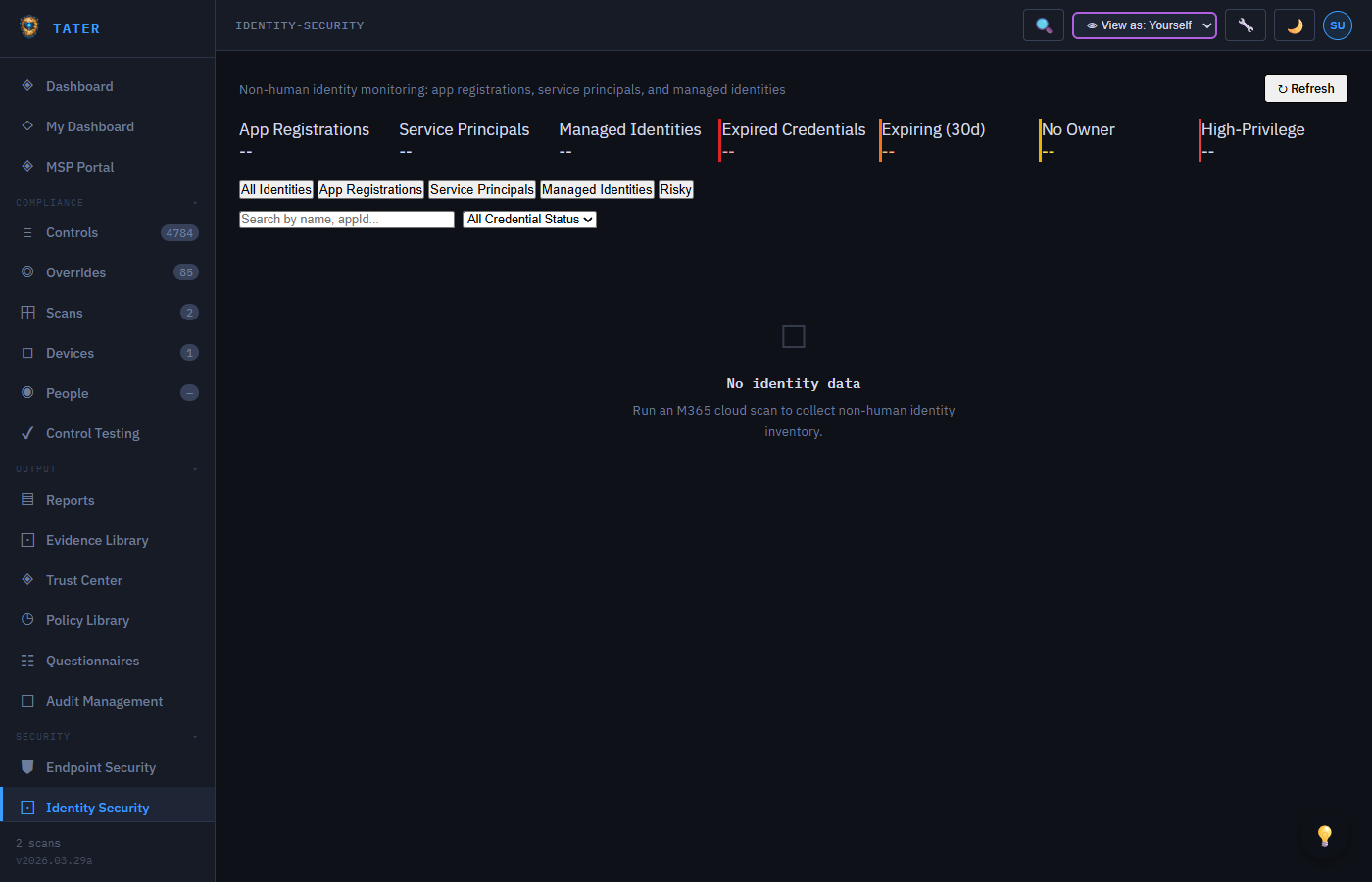
The Identity Security module provides visibility into identity-related risks across your Microsoft 365 environment:
Dashboard Overview
- Risky Users: Users flagged by Entra ID Identity Protection with risk levels (High, Medium, Low)
- MFA Status: Breakdown of MFA enrollment across your user base
- Privileged Accounts: Count of users with privileged roles (Global Admin, Security Admin, etc.)
- Stale Accounts: Users who have not signed in within a configurable period
- Guest Users: External guest accounts with access to your tenant
Identity Controls
Identity-related compliance controls from CIS and CISA SCuBA are grouped together for focused monitoring:
- Conditional Access policy evaluation
- Password policy compliance
- Admin account separation and protection
- Self-service password reset (SSPR) configuration
- Legacy authentication blocking
- Privileged role assignment tracking
Recommendations
Based on your identity posture, TATER generates prioritized recommendations:
- Enable MFA for remaining users
- Review and reduce privileged role assignments
- Disable or remove stale guest accounts
- Implement conditional access policies for risky sign-ins
- Block legacy authentication protocols
Automated Remediation
TATER includes one-click automated remediation for failing compliance controls. The remediation system uses a two-runbook architecture in Azure Automation to handle both Graph API and Exchange Online operations.
How It Works
- Identify: Navigate to a failing control on the Controls page and click the Remediate button
- Confirm: Review the remediation description and any required parameters in the confirmation modal
- Execute: TATER triggers the remediation webhook, which starts the Azure Automation runbook
- Monitor: The modal shows real-time status polling (5-second intervals, 10-minute timeout)
- Verify: Once complete, run a new scan to verify the control now passes
Architecture
The remediation system uses two Azure Automation runbooks:
| Runbook | Runtime | Purpose |
|---|---|---|
| Run-Remediation | PS 7.2 | Primary runbook. Handles Graph API remediations and auto-delegates EXO-dependent scripts |
| Run-Remediation-EXO | PS 5.1 | Companion runbook for Exchange Online, Defender, and Security & Compliance remediations |
The primary runbook scans each remediation script for Exchange cmdlet patterns. If EXO cmdlets are detected, it automatically delegates execution to the PS 5.1 companion runbook.
Remediation Catalog
TATER includes 1,400+ pre-built remediation scripts across two domains: 84 cloud-side M365 scripts and 1,318 endpoint hardening scripts. All trigger through Azure Automation runbooks with full audit logging.
M365 cloud remediations (84 scripts)
| Category | Scripts | Examples |
|---|---|---|
| Defender | 11 | Safe Links, Safe Attachments, DKIM, SPF, spam filters |
| Exchange Online | 6 | Auditing, modern auth, MailTips, SMTP AUTH |
| SharePoint | 5 | External sharing, guest reshare, infected files |
| Entra ID | 9 | Idle timeout, app registration, SSPR, guest invite |
| Power BI | 2 | Publish to web, resource key auth |
| Purview | 1 | Retention policies |
| CISA SCuBA | 17 | Preset security, DMARC, alerts, sharing, audit |
| Teams | 2 | Guidance-only (requires delegated auth) |
Windows endpoint hardening (1,318 scripts)
| Family | Scripts | Coverage |
|---|---|---|
| W11E (Windows 11 Enterprise) | 435 | CIS Benchmark controls |
| SRV19 (Server 2019) | 286 | CIS Benchmark controls |
| SRV22 (Server 2022) | 287 | CIS Benchmark controls |
| SRV25 (Server 2025) | 310 | CIS Benchmark controls |
Endpoint scripts execute via the local TATER agent rather than Azure Automation. Each one captures registry / secedit / auditpol / firewall pre/post state for change documentation. See Endpoint Hardening Plan for the workflow.
Companion apps in the suite
Security operations now span six sister apps that share identity and data:
- TATER Security (this app) - compliance scanning, remediation, GRC modules, federal pipeline
- TATER Ops (guide) - ITIL service desk: catalog, profiles, workflows, schedules, meetings, CMDB, change control
- TATER Manage (guide) - SuperAdmin platform admin + endpoint fleet remote ops (Phase 2 commands, Phase 3 multi-screen, Phase 4 vulnerability inventory)
- My TATER (guide) - every user's personal dashboard with favorites, tasks, mentions, community feed
- TATER Insights (guide) - centralized cross-module reporting: report builder, scheduled delivery, exports
- TATER Vault (guide) - zero-knowledge credential storage and one-time Secure Send
Teams remediation scripts provide guidance only. The underlying Cs* cmdlets require delegated authentication, which cannot be automated in Azure Automation runbooks.
Enabling Remediation
Automated remediation must be enabled per organization:
- Navigate to Settings > Integrations
- Enable the Automated Remediation toggle
- Enter the Azure Automation webhook URL for the Run-Remediation runbook
- Enter the App Registration Client ID used by the runbook
- Test the connection with the Test button
For detailed setup instructions including Azure Automation configuration, managed identity permissions, and blob storage, see the Azure Runbooks guide and the Remediation Setup Guide in the Docs folder.
Incident Response Playbooks
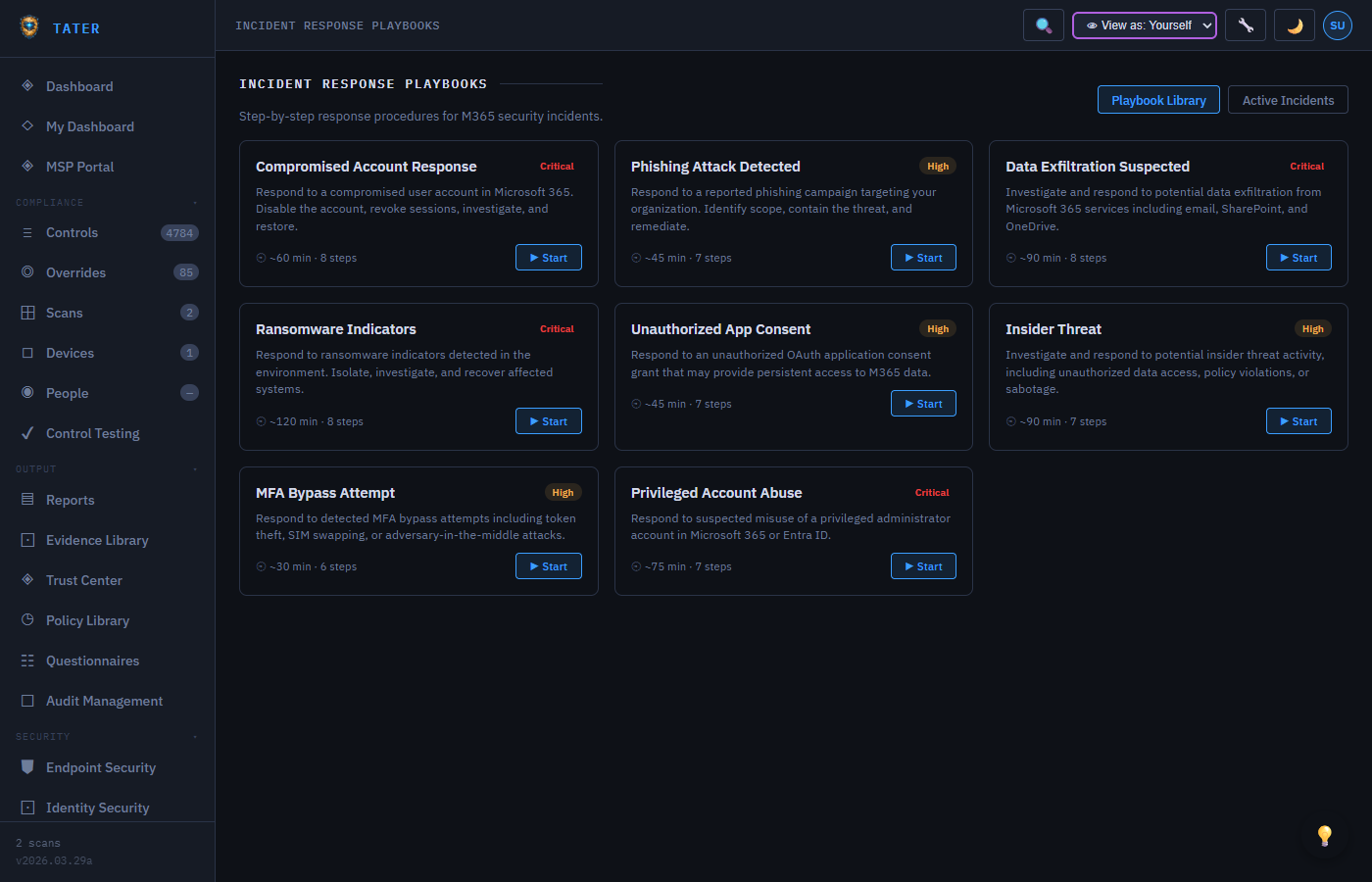
Create and manage incident response playbooks with step-by-step response procedures for common security incidents.
Playbook Library
- Pre-built Playbooks: Common incident types (phishing, malware, data breach, account compromise, DDoS)
- Custom Playbooks: Create organization-specific response procedures
- Version Control: Track playbook revisions and approvals
- Owner Assignment: Assign playbook owners responsible for keeping procedures current
Playbook Structure
Each playbook contains structured response phases:
- Detection & Analysis: How to identify and confirm the incident
- Containment: Immediate actions to limit the impact
- Eradication: Steps to remove the threat
- Recovery: Restoring normal operations
- Post-Incident: Lessons learned and process improvements
Activating a Playbook
When an incident occurs, activate a playbook to track the response:
- Select the relevant playbook and click Activate
- Assign responders to each phase and step
- Track completion of each step with timestamps
- Document findings and decisions at each phase
- Generate a post-incident report from the completed playbook
Azure Resource Scanning
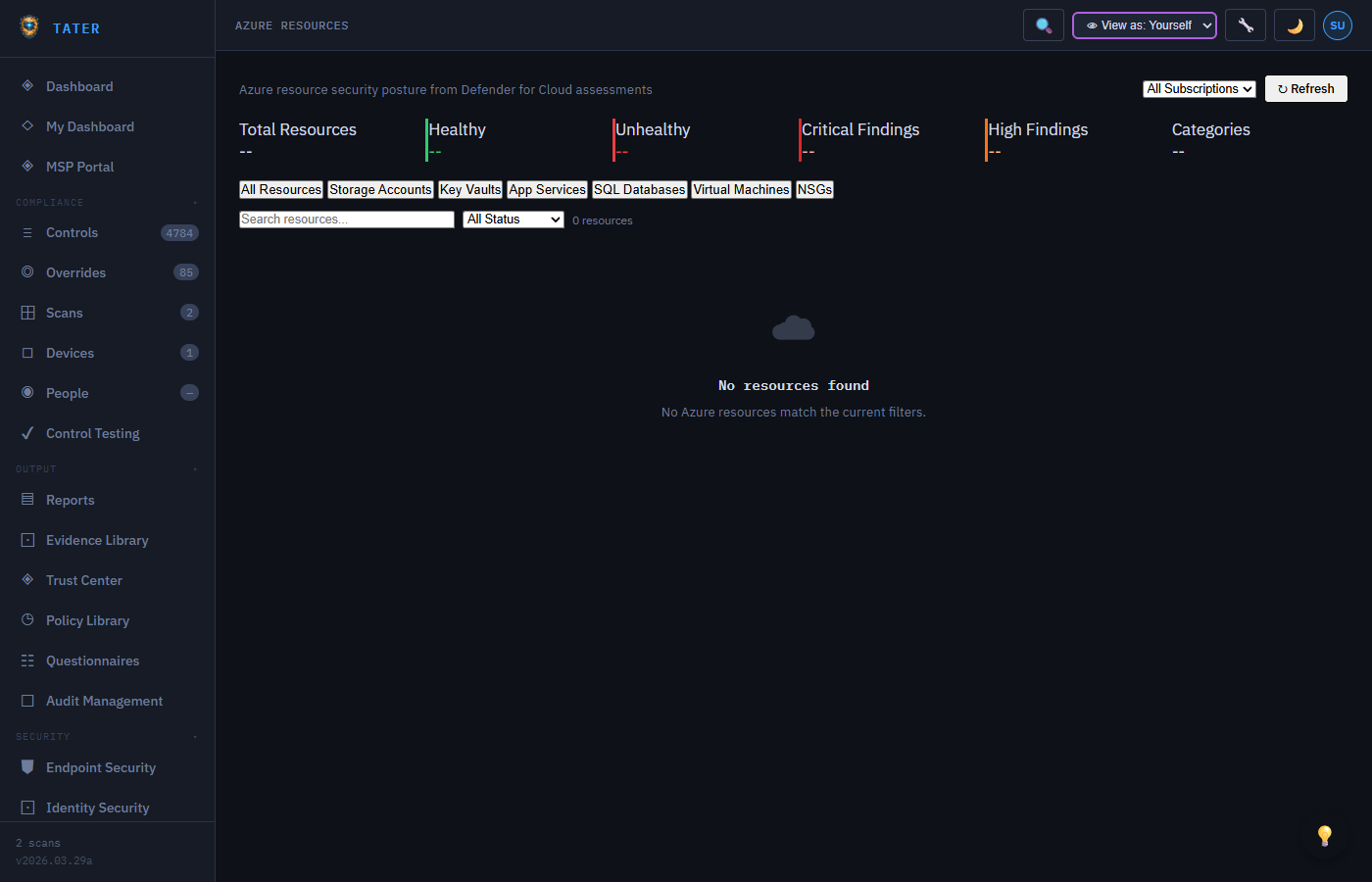
Scan and monitor Azure resource configurations for compliance with security best practices.
What Gets Scanned
- Resource Groups: Organization and tagging compliance
- Storage Accounts: Encryption, access controls, network rules, secure transfer
- Key Vaults: Access policies, soft delete, purge protection
- Virtual Machines: Disk encryption, network security groups, update status
- App Services: HTTPS enforcement, TLS version, authentication settings
- SQL Databases: TDE, auditing, threat detection, firewall rules
- Network Security Groups: Inbound/outbound rule analysis
Understanding Results
Azure resource scan results integrate with the standard compliance view:
- Each resource check maps to a compliance control
- Results are displayed alongside M365 compliance data on the dashboard
- Failing resources are linked to specific remediation guidance
- Cross-framework mapping shows how Azure controls satisfy NIST, ISO, and SOC 2 requirements
Setup
To enable Azure resource scanning:
- Configure an app registration with Reader role on target subscriptions
- Store the credentials in TATER Settings > Tenants
- Enable the Azure Resources feature in Settings > Features
- Trigger a scan from the Azure Resources page or schedule it alongside M365 scans
Identity Threat Detection & Response (ITDR)
The ITDR module surfaces identity-layer threats from Microsoft Entra ID and Microsoft Defender - enabling your team to investigate and respond to suspicious sign-ins, risky users, and anomalous identity behaviors directly within TATER.
ITDR Alerts
- Alert ingestion: Pull risky user events, sign-in anomalies, and identity protection alerts from Entra ID Risk Detections via the Graph API scan
- Severity classification: Alerts classified as Critical, High, Medium, or Low based on the Entra ID risk level and detection type
- Status workflow: New → Investigating → Resolved / False Positive with investigation notes and assignee tracking
- Source user tagging: Each alert links to the affected user's UPN and Entra ID object ID for quick lookup
ITDR Playbooks
Attach standardized response procedures to ITDR alert categories. When an alert is created, the matching playbook appears inline with step-by-step investigation and containment guidance. Playbooks can be created in the Incident Response Playbooks page and linked to ITDR alert types.
Investigation Workflow
- Alert created (automatically via scan or manually by analyst)
- Analyst assigns the alert and sets status to Investigating
- Investigation notes field captures timeline, findings, and remediation actions taken
- Related sign-ins list shows associated sign-in events (IP, location, device)
- Alert resolved or marked as False Positive with closing notes
- All state changes written to the Activity Log for audit trail
Multi-Cloud Security Posture
Beyond Microsoft 365 and Azure, TATER's Multi-Cloud module extends compliance visibility to AWS and GCP environments - providing a unified security posture dashboard across your entire cloud estate.
Cloud Account Management
- Register AWS accounts (Access Key + Secret, or cross-account IAM role ARN) and GCP projects (Service Account JSON)
- Credentials are encrypted at rest using AES-256-GCM
- Multiple accounts per cloud provider are supported for multi-account organizations
- Account health status (Connected, Error, Not Configured) shown on the posture dashboard
Cloud Posture Scans
Trigger on-demand posture scans against registered cloud accounts. Scan results are evaluated against cloud security benchmarks:
- AWS: CIS Amazon Web Services Foundations Benchmark, AWS Security Hub standards
- GCP: CIS Google Cloud Platform Foundation Benchmark
- Results are displayed per-account with pass/fail/unknown counts and severity breakdown
- Findings map to TATER's unified control catalog where framework mappings exist
Understanding Results
- Pass rate shown per cloud account and per framework section
- Critical findings highlighted with recommended remediation steps
- Cross-cloud posture summary on the Security Posture overview page
- Results included in Executive Report when the Multi-Cloud module is enabled
Security Posture Score
The Security Posture Score is a single, cross-domain composite metric (0-100) that rolls up signals from every security surface TATER monitors - compliance, endpoints, identity, and cloud - into one number you can track on the dashboard, trend over time, and report to leadership. Instead of reading four separate dashboards, you get a weighted rollup that reflects your organization's overall risk posture at a glance.
What feeds the score
The composite blends weighted contributions from four domains:
- Compliance: Pass rate across your in-scope M365 and Azure controls, weighted by control severity and adjusted for accepted-risk overrides
- Endpoint: Fleet hardening pass rate, open vulnerability counts (weighted toward CISA KEV / ransomware-linked CVEs), and end-of-life software exposure
- Identity: MFA enrollment, risky-user and privileged-account signals, legacy authentication exposure, and conditional access coverage
- Cloud: Multi-cloud (AWS / GCP / Azure) posture-scan pass rates and critical-finding counts from registered cloud accounts
Each domain produces a sub-score; the overall posture score is a weighted average. Domains with no scan data (for example, Multi-Cloud when no cloud accounts are registered) are excluded from the rollup rather than counted as a failure, so the score reflects only the surfaces you actively monitor.
Using the score
- The headline score and per-domain breakdown appear on the Security Posture overview page
- Drill into any domain sub-score to jump to the underlying scans, failing controls, or findings driving it
- Trend the composite over time to demonstrate improvement after remediation work or a hardening campaign
- The score is included in the Executive Report and exposed to the AI Analyst (via the
get_security_posture_scoretool) for narrative summaries and recommendations
The posture score is only as current as the data behind it. Run M365 cloud scans, endpoint scans, and any cloud posture scans on a regular schedule so each domain contributes recent results. Stale or missing scans lower confidence in the rollup and may exclude a domain from the composite.
Prerequisites
- At least one completed scan in a domain for that domain to contribute to the score (compliance and endpoint domains are populated automatically by scheduled scans)
- Registered cloud accounts and a completed posture scan for the Cloud domain to contribute (see Multi-Cloud Security Posture)
- Viewer role or higher to see the score; OrgAdmin to configure scan schedules that keep it current
Non-Human Identities (NHI)
Non-human identities - service principals, managed identities, app registrations, OAuth2 grants, and scheduled automation accounts - represent a rapidly growing attack surface. The NHI Inventory page in TATER Security surfaces the full list of machine identities detected during M365 cloud scans so your team can review permissions, spot over-privileged principals, and remediate before attackers exploit them.
What TATER scans
The M365 cloud scan runbook extracts NHI data from Entra ID and stores it in a dedicated container to keep it within the 2 MB Cosmos document limit. The inventory captures:
- Service Principals - app registrations and enterprise applications, including display name, app ID, created date, and owner
- Managed Identities - system-assigned and user-assigned managed identities across Azure resources
- OAuth2 Permission Grants - delegated and application-level consent grants (who granted what to whom)
- Key & Certificate Expiry - client secrets and certificates with approaching or past expiry dates flagged in amber/red
- High-Privilege Roles - service principals holding Global Administrator, Application Administrator, or other sensitive roles
Reviewing the inventory
Open Identity → Identity Security. The table columns are sortable; use the search bar to filter by name or app ID. Expand any row to see the full permission grant list and expiry timeline. The Risk badge (Low / Medium / High) is computed from a combination of privilege level, credential age, and unused-for-30-day inactivity signals.
Remediating NHI risks
- Rotate or revoke expiring credentials via the Action → menu (launches a remediation in TATER)
- Remove unused OAuth2 permission grants directly in the Entra admin center (deep-link provided in the row)
- File a Change Request or Risk record against any principal you cannot remediate immediately
- Tag persistent high-risk items as exceptions with a documented justification
See also: Blog → Non-Human Identities: The Attack Surface You Might Be Ignoring ↗
Work Location Attestation
Where assigned devices have been working from, checked against what each person declared. Many organisations require staff to report a change of work location; this shows whether that is actually happening.
- Read the gaps before the outlier count. "0 outliers" is only a clean result if nothing was skipped. Devices nobody has assigned, people with no declared location, and days with no resolved country are all uncompared, not compliant - each one is shown with its count.
- The primary signal needs no geography. An outlier is raised when a device's network changes and no correction was filed within a week either side - which is exactly what the policy asks people to do. Country comparison runs only where both the observed and declared country are known.
- Approved travel suppresses outliers for the dates it covers, so a business trip is not reported as an unreported move.
- Attribution is by assignment, from the asset register - not by who signed in most recently. A device nobody has been assigned is never attributed to a person.
- Corrections are proposed by the person in My TATER and approved in TATER Ops. Approval is the only thing that writes a declared location; if people could set their own, the comparison would prove nothing.
Data Classification & Privacy
See also: GRC Modules → Data Classification & Privacy for full documentation.
The Data Classification module provides a structured inventory of your organization's data assets, supporting GDPR, HIPAA, and ISO 27001 data governance requirements:
- Data Asset Inventory: Catalog data stores (databases, file shares, SaaS applications) with classification labels: Public, Internal, Confidential, or Restricted
- Data Flow Mapping: Document how data moves between systems, including cross-border transfers and third-party sharing
- Privacy Impact Assessments (PIA): Structured PIA workflow with risk assessment, stakeholder review, and approval tracking
- Retention Policies: Define retention periods and disposition actions per data category, with automated reminder tracking
- Classification Labels: Public, Internal, Confidential, Restricted - each with configurable handling requirements and access controls