 TATER
TATER GRC Modules Guide
Complete guide to all Governance, Risk, and Compliance modules in TATER: Risk Register, Exception Management, Audit Management, BCP/DR, Data Classification, Training, Control Testing, Vendor Management, Questionnaires, Change Requests, Regulatory Changes, and Access Reviews.
Process Profiles (Standards-Aligned Workflows)
A Process Profile makes a Risk, Audit, Change, or Vendor record follow a recognized framework's lifecycle instead of a generic one. Each profile bundles a status workflow (the allowed states and transitions for that standard) with field rules, so an ISO 27005 risk and a NIST SP 800-37 risk each move through their own correct stages. Adopting a profile is optional — records without one keep the default statuses.
Built-in Standard Templates
- Risk: NIST SP 800-37 (RMF) — Identified → Assessed → Treatment Planned → Monitoring → Closed; or ISO/IEC 27005 — Identified → Analyzed → Evaluated → Treated → Monitoring → Closed.
- Audit: SOC 2 Type II — Planning → Fieldwork → Evidence Review → Findings → Reporting → Complete; or ISO 27001 — Stage 1 → Stage 2 → Certified → Surveillance.
- Change: ITIL Change Enablement — Draft → Assessment → CAB Review → Approved → Scheduled → Implementing → Review → Closed (with Rejected / Rolled Back paths).
- Vendor: Shared Assessments SIG — Onboarding → Questionnaire Sent → Under Review → Risk Rated → Approved → Annual Review; or VSA-Lite for low-risk suppliers (a short Screening → Approved fast path).
Adopting a Profile
Open a record
Create or edit a Risk, Audit, Change, or Vendor. Each modal now has a Process Profile picker near the top.
Pick a profile
Choose a standard (e.g. ISO 27005). The Status dropdown immediately changes to that standard's workflow stages, and a new record starts at the profile's initial status.
Move it through the workflow
On save, TATER enforces the profile's allowed transitions — it will reject an out-of-order status change (for example, jumping an ISO 27001 audit straight from Stage 1 to Certified) so records stay audit-defensible.
No profiles yet? The first time an administrator opens the picker it offers a one-click “Seed standard templates” link that loads all of the built-ins above — no separate setup page needed. AI assistants connected over MCP can do the same with the seed_entity_profiles tool and read the catalog with list_entity_profiles.
Risk Register & Heat Map
The Risk Register provides a centralized catalog of organizational risks with quantitative scoring, treatment tracking, and a visual 5x5 heat map.
Key Features
- 5x5 Heat Map: Interactive likelihood vs. impact grid showing risk distribution across severity zones
- Quantitative Scoring: FAIR-based Monte Carlo estimates - min/likely/max ranges for Loss Event Frequency and Loss Magnitude produce P10/P50/mean/P90 annualized-loss bands per risk, rolled up into the register's modeled-exposure strip
- Treatment Plans: Four treatment options: Mitigate, Accept, Transfer, Avoid
- Residual Risk: Track residual risk after treatment measures are applied
- Control Linkage: Bidirectional linkage between risks and compliance controls
- Categories: Organize risks by category (Operational, Strategic, Compliance, Financial, Technical, Reputational)
Creating a Risk Entry
Click New Risk
Navigate to the Risk Register and click New Risk to open the creation form.
Define the risk
Enter the risk title, description, category, and risk owner. Provide detailed context about the threat and its potential impact.
Score likelihood and impact
Rate both likelihood (1-5) and impact (1-5). The heat map cell updates in real-time. Optionally add a FAIR quantitative estimate from the risk detail page - enter Loss Event Frequency and Loss Magnitude ranges and click Run Monte Carlo to compute annualized-loss bands.
Select treatment
Choose a treatment option (Mitigate, Accept, Transfer, Avoid) and document the treatment plan. Link related compliance controls for traceability.
Set residual risk
After treatment is applied, reassess and record residual likelihood and impact scores.
Click any cell in the heat map to filter the risk list to only show risks at that likelihood/impact intersection. Click again to clear the filter.
Exception & Waiver Management
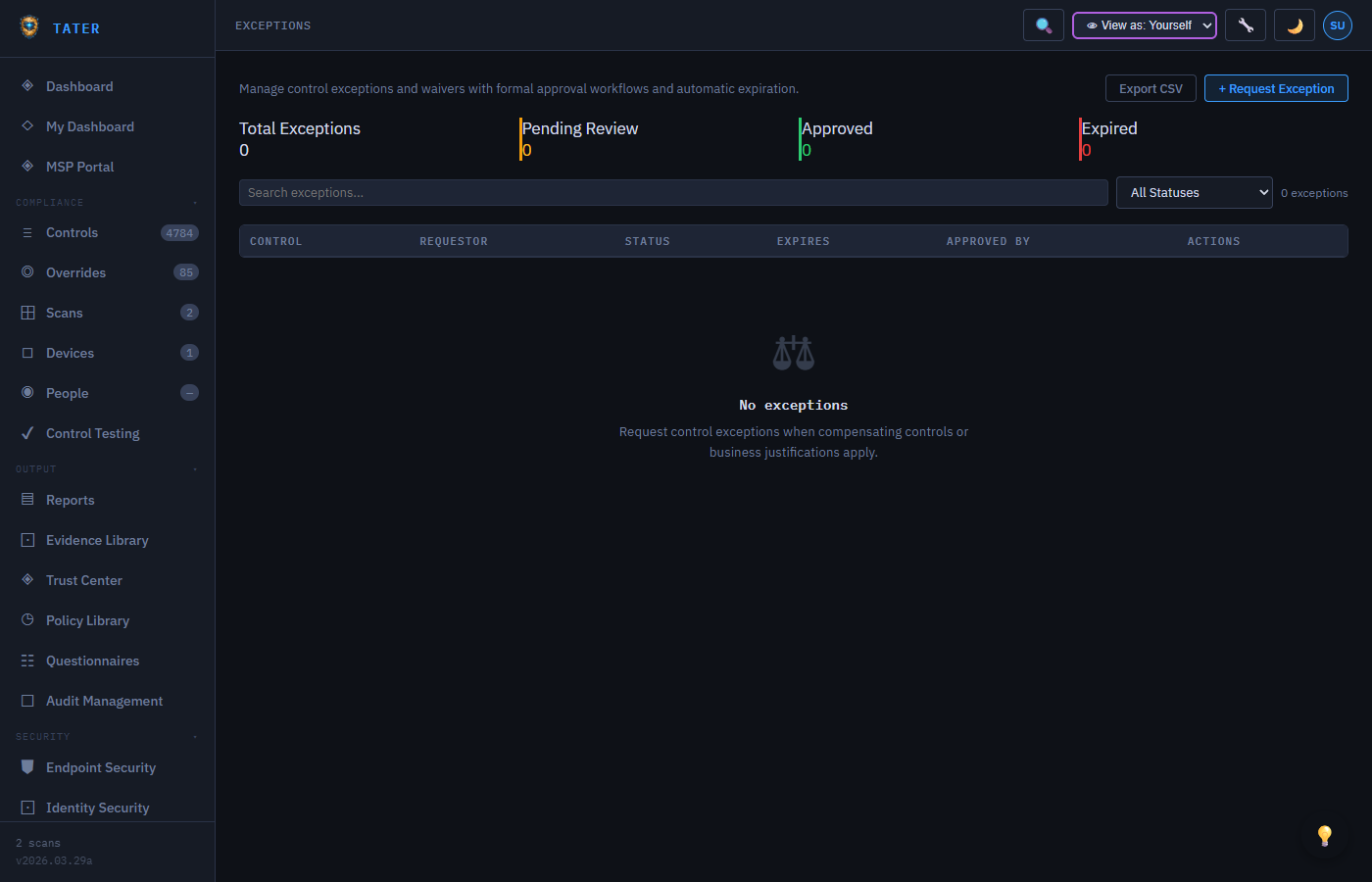
Manage formal exception requests for compliance requirements that cannot be met due to business constraints, with structured approval workflows and automatic expiry enforcement.
Exception Workflow
- Request: Submit an exception request with the affected control, business justification, and proposed compensating controls
- Review: The request enters a multi-level approval chain (OrgAdmin, CISO, Risk Committee)
- Approve/Deny: Each approver reviews and provides their decision with comments
- Monitor: Approved exceptions are tracked with expiry dates and renewal reminders
- Renew or Close: Before expiry, the exception owner can renew with updated justification or close the exception
Exception Request Fields
| Field | Description |
|---|---|
| Control | The compliance control requiring an exception |
| Justification | Business reason why the requirement cannot be met |
| Compensating Controls | Alternative measures implemented to reduce risk |
| Expiry Date | When the exception expires and must be renewed or resolved |
| Risk Level | Residual risk with the exception in place |
| Owner | Person responsible for monitoring the exception |
Exceptions approaching their expiry date trigger renewal reminders 30 days, 14 days, and 7 days before the deadline. Expired exceptions are automatically flagged and removed from active override calculations.
Audit Management
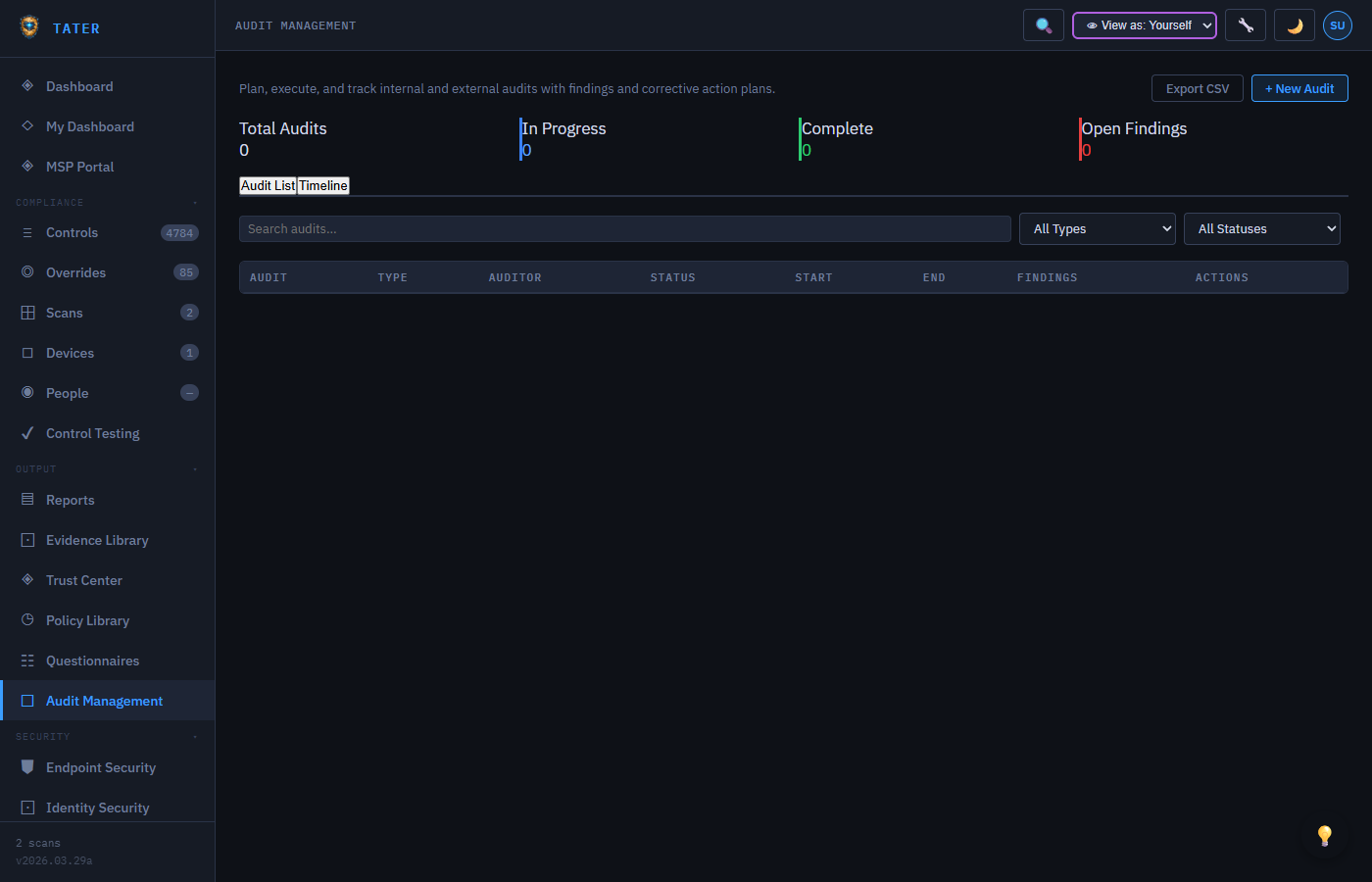
Plan and manage internal and external audit engagements with finding tracking, evidence collection, and calendar management.
Planning an Audit
- Navigate to Audits and click New Audit
- Define the audit: name, type (Internal/External), scope, and objectives
- Set target dates: planned start, planned end, and report deadline
- Assign auditors from your team or external contacts
- Select the frameworks and controls in scope for the audit
Managing Findings
During the audit, record findings as they are identified:
- Severity: Critical, Major, Minor, Observation
- Affected Controls: Link findings to specific controls
- Remediation Plan: Document the corrective action plan with target dates
- Status Tracking: Open, In Progress, Remediated, Verified, Closed
- Evidence: Attach supporting evidence to findings
Evidence Collection
Request evidence from control owners during the audit process:
- Click Request Evidence on an audit finding or control
- Select the evidence type needed (screenshot, document, configuration export, etc.)
- Assign the request to the control owner with a due date
- The owner receives a notification and can upload evidence directly
- Track request status: Requested, In Progress, Submitted, Reviewed
Audit Calendar
The audit calendar view shows all past and upcoming audit engagements in a timeline format. Use it to plan audit cadence and avoid scheduling conflicts.
Business Continuity & Disaster Recovery
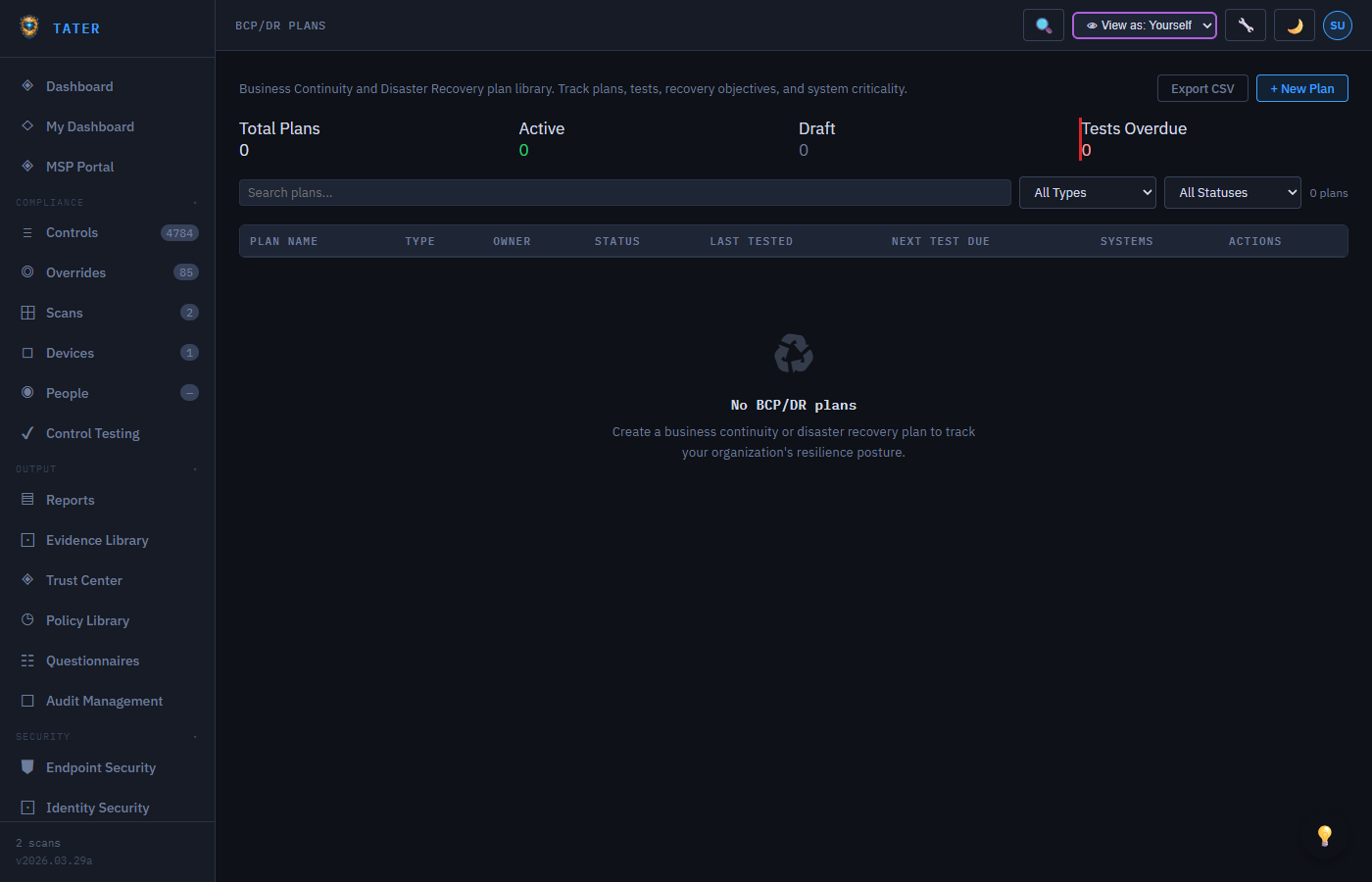
Manage BCP/DR plans with business impact analysis, RTO/RPO tracking, and test exercise management.
Plan Management
- Plan Library: Maintain multiple BCP/DR plans with version control
- Approval Workflows: Plans go through review and approval before activation
- Version History: Track changes across plan revisions
- Distribution: Share approved plans with designated team members
Business Impact Analysis (BIA)
Document critical business processes and their recovery requirements:
| BIA Field | Description |
|---|---|
| Process Name | The business process being analyzed |
| Criticality | Mission Critical, Business Critical, Important, Normal |
| RTO | Recovery Time Objective -- maximum acceptable downtime |
| RPO | Recovery Point Objective -- maximum acceptable data loss |
| Dependencies | Systems, applications, and personnel required |
| Impact Assessment | Financial, operational, and reputational impact at various time intervals |
Test & Exercise Tracking
Track BCP/DR test exercises and their outcomes:
- Exercise Types: Tabletop, Walkthrough, Simulation, Full Test
- Results: Actual RTO/RPO achieved vs. targets
- Lessons Learned: Document findings and improvement actions
- Frequency: Track when the last test was performed and when the next is due
RTO/RPO Monitoring
The BCP/DR dashboard compares actual recovery performance against defined targets:
- Green: Actual recovery met or exceeded the objective
- Yellow: Actual recovery was within 120% of the objective
- Red: Actual recovery exceeded the objective by more than 20%
Data Classification & Privacy
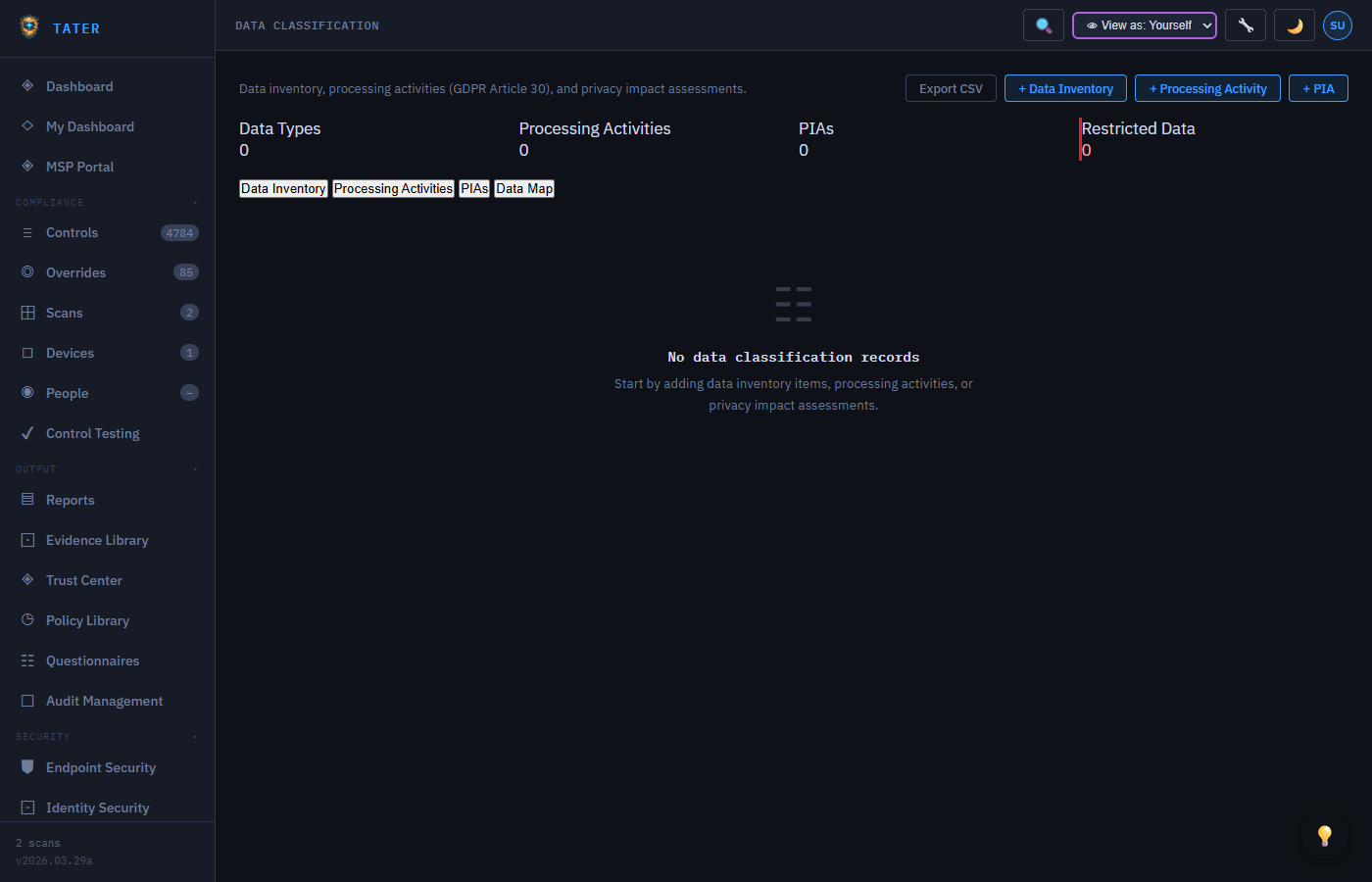
Maintain a data asset inventory with classification labels, flow mapping, privacy impact assessments, and retention policy management.
Data Asset Inventory
Catalog all data assets in your organization:
- Asset Name: Name of the data asset or system
- Classification: Public, Internal, Confidential, Restricted
- Data Type: PII, PHI, Financial, Intellectual Property, etc.
- Owner: Data owner responsible for classification decisions
- Storage Location: Where the data resides (cloud, on-premises, hybrid)
- Encryption Status: At rest and in transit encryption status
Data Flow Mapping
Map how data flows between systems in your organization:
- Define source and destination systems
- Document the data types that flow between systems
- Identify cross-border data transfers for regulatory compliance
- Highlight flows that involve sensitive data classifications
Privacy Impact Assessments (PIA)
Conduct privacy impact assessments for new systems or processes:
- Create a new PIA and describe the system or process being assessed
- Identify the personal data collected and processed
- Assess the privacy risks and their likelihood and impact
- Document mitigating measures and residual risk
- Submit for review and approval by the Data Protection Officer
Retention Policy Management
Define and track data retention policies:
- Set retention periods by data classification level
- Track disposition schedules and upcoming deletions
- Document legal hold requirements that override standard retention
- Generate disposition reports for audit compliance
Security Awareness Training
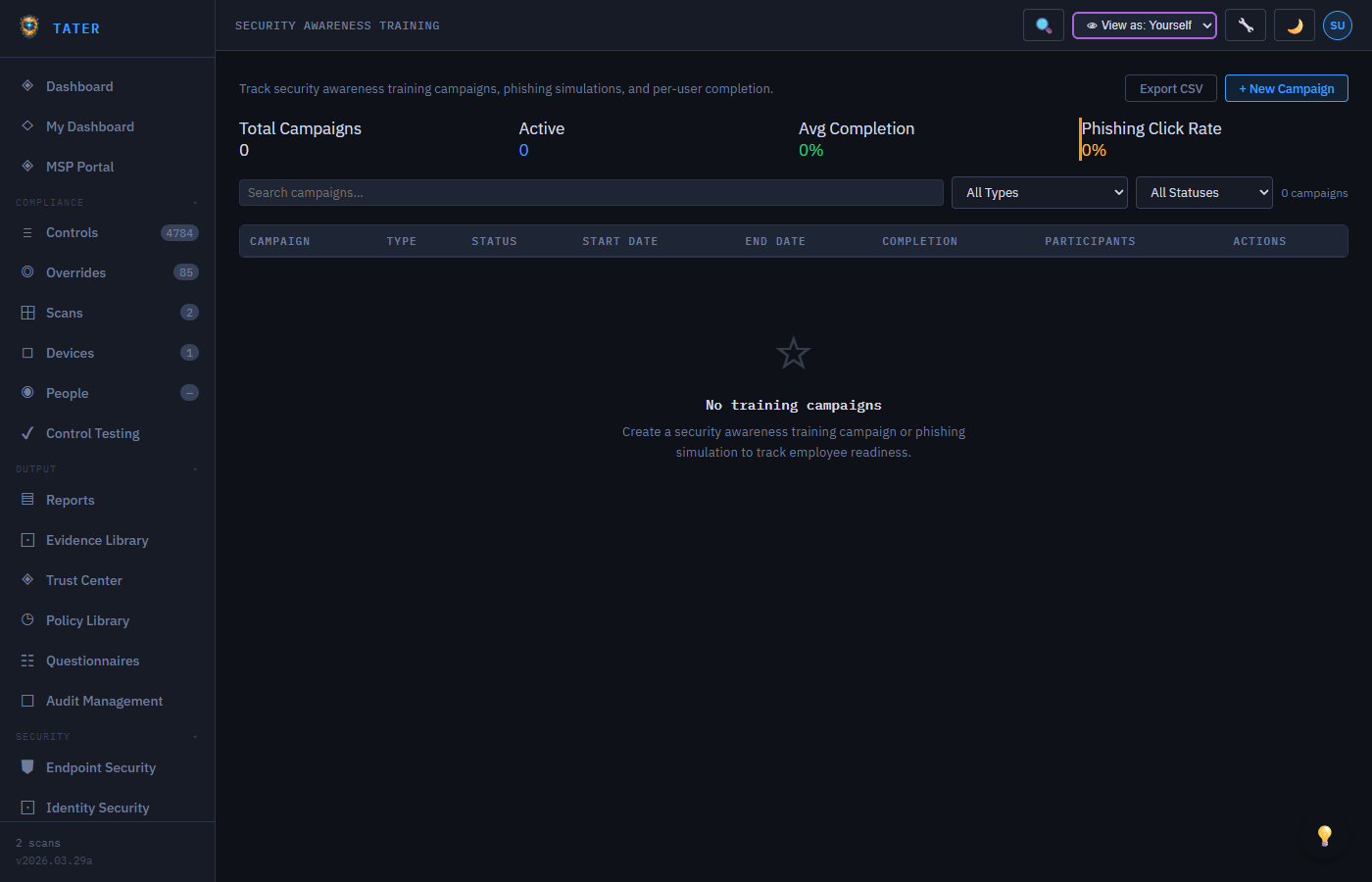
Manage security awareness training campaigns with completion tracking, phishing simulation results, and audit-ready compliance reports.
Campaign Management
- Navigate to Training and click New Campaign
- Define the campaign: name, required courses, target audience, deadline, and completion threshold
- Assign target groups (all employees, specific departments, new hires)
- Set the campaign as mandatory or optional
- Activate the campaign to begin tracking
Completion Tracking
Track per-employee completion status with dashboard KPI cards:
- Completion Rate: Percentage of target audience who completed all required courses
- Overdue: Count of employees past the deadline who have not completed training
- In Progress: Employees who have started but not finished
- Not Started: Employees who have not begun training
Phishing Simulation Results
Phishing simulations are tracked as Phishing Simulation campaigns on the Training page, with sent, clicked, and reported counts and a derived click rate. There are two ways to get results in: sync them natively from Microsoft 365, or record third-party results by hand.
Sync M365 Phishing (recommended)
If your tenant runs Microsoft Defender for Office 365 Attack Simulation Training, TATER reads the results directly — no export, no re-keying. Click ↻ Sync M365 Phishing on the Training page and TATER pulls every simulation from Microsoft Graph and imports each one as a Phishing Simulation campaign. The import is idempotent, so re-syncing updates the existing campaigns rather than creating duplicates, and imported campaigns are marked as having come from Attack Simulation Training so you can tell them apart from hand-entered ones.
The same sync computes an org-level posture summary that is cached for the dashboard and for AI agents:
- Overall click rate and compromised rate across all simulations
- Repeat offenders — users who clicked in more than one simulation, with a top-25 list for targeted intervention
- Training completion — how many assigned follow-up trainings have actually been completed
- Simulation count and the timestamp of the last sync
The sync needs the AttackSimulation.Read.All application permission on your tenant app registration, granted and admin-consented. Without it Microsoft Graph returns 403 and the sync reports exactly that, with the permission name — grant it, then click the button again. See Graph API permissions. Attack Simulation Training itself requires Defender for Office 365 P2 or Microsoft 365 E5; on tenants without it the sync says so rather than failing silently.
Running the sync requires the Admin role; reading the resulting posture requires Auditor or above.
Third-party simulation results
If you run simulations somewhere else (KnowBe4, Proofpoint, an internal tool), create a campaign of type Phishing Simulation and enter the sent, clicked, and reported counts yourself. The click rate is derived from sent and clicked, so you do not enter it. Everything downstream — trending across campaigns, and the campaign's value as audit evidence — works the same either way.
- Click rate and report rate per campaign, with sent / clicked / reported counts behind them
- Trend analysis across multiple simulation campaigns
- Repeat offender identification for targeted intervention (from the M365 sync)
Audit Evidence
Training completion records serve as audit evidence for compliance frameworks that require security awareness training (NIST 800-53 AT-2, ISO 27001 A.7.2.2, SOC 2 CC1.4).
Control Testing Automation
Schedule and execute control tests with reusable procedures, historical results tracking, and automatic gap detection.
Test Scheduling
Configure automated test schedules for each control:
- Frequency: Daily, Weekly, Monthly, Quarterly, Annually
- Scope: Individual controls or groups of controls
- Assignments: Assign test execution to specific team members
- Notifications: Alerts when tests are due or overdue
Test Procedure Library
Build a reusable library of test procedures:
- Document step-by-step test procedures for each control
- Define pass/fail criteria with clear thresholds
- Include expected evidence and documentation requirements
- Reuse procedures across multiple test cycles
Historical Results & Trends
- View test results over time with trend charts showing effectiveness
- Identify controls that consistently fail tests for remediation prioritization
- Generate test reports for audit evidence
- Track tester notes and observations alongside pass/fail status
Automatic Gap Detection
Failed control tests automatically feed into the remediation workflow:
- Failed tests generate gap notifications to control owners
- Gaps are linked to the failing control for remediation tracking
- SLA timers start based on the control's severity level
Vendor Risk Management
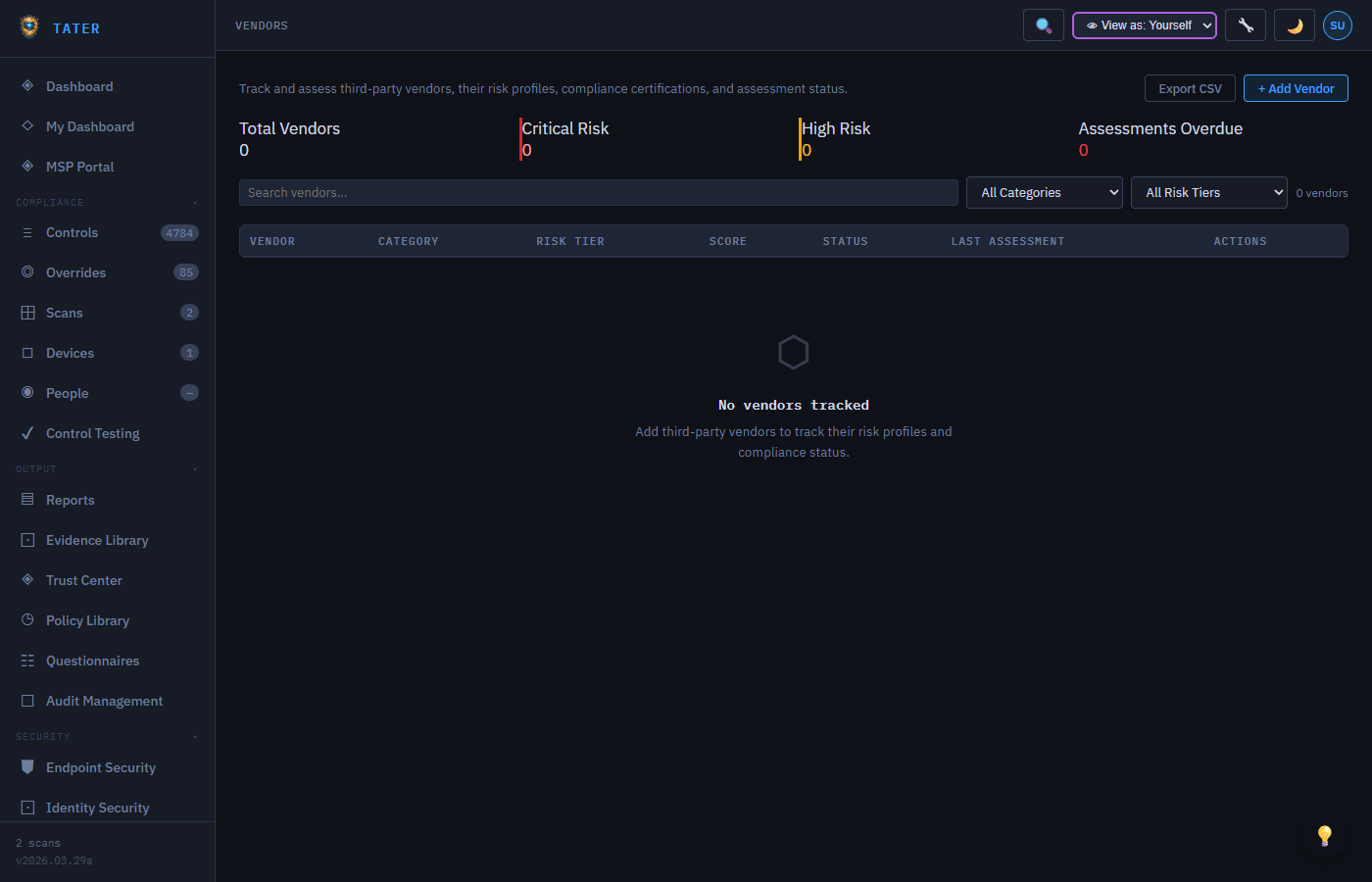
Manage third-party vendor relationships with risk tiering, assessment tracking, and continuous monitoring.
Vendor Inventory
- Vendor Name: Company name and primary contact
- Risk Tier: Critical, High, Medium, Low based on data access and business dependency
- Services: Services provided by the vendor
- Data Access: What types of data the vendor can access
- Contract Status: Active, Under Review, Terminated
- Last Assessment: Date of most recent risk assessment
Risk Assessments
- Select a vendor and click New Assessment
- Complete the assessment questionnaire (security controls, certifications, incident history)
- Review vendor-provided evidence (SOC 2 reports, penetration test results, etc.)
- Score the vendor across security domains
- Generate an assessment report with recommendations
Continuous Monitoring
- Track vendor certification expiry dates
- Monitor vendor security ratings from external sources
- Set reassessment reminders based on risk tier frequency
- Document vendor incidents and their resolution
Contracts & Renewals
The Contract Status field above is a summary; the contracts themselves are first-class records on each vendor's Contracts tab - MSAs, SOWs, DPAs, NDAs, order forms, and subscriptions, each with a term, a value, a notice window, and an auto-renewal flag. Status (Active / Expiring / Expired) is derived from the end date against the notice window, so it is never stale.
Vendors & TPRM → Contract Renewals is the cross-vendor view: everything expiring inside a 30 / 60 / 90 / 180 / 365-day window, overdue contracts flagged in red, with a Renew action on each row. Expiries also appear on the GRC Calendar.
Full detail - the contract fields, how the derived status works, renewing, and the difference between terminating and deleting - is in the vendor contracts & renewals guide.
The rest of the vendor lifecycle
A vendor's detail page carries more tabs than the assessment workflow above. Each is covered in the Vendor External Posture, Contracts & Lifecycle guide:
- External posture scanning - SPF / DMARC / TLS / HSTS graded A-F, refreshed by a nightly sweep
- Portal access tokens - time-limited external access for a vendor contact, and how to revoke it (the vendor-facing page is not live yet - see the guide before issuing any)
- Complaints and on-site reviews - logging issues against a vendor and running site visits, both of which feed the vendor's risk history
- DocuSign envelopes - tracking signature requests against the vendor
Access Reviews
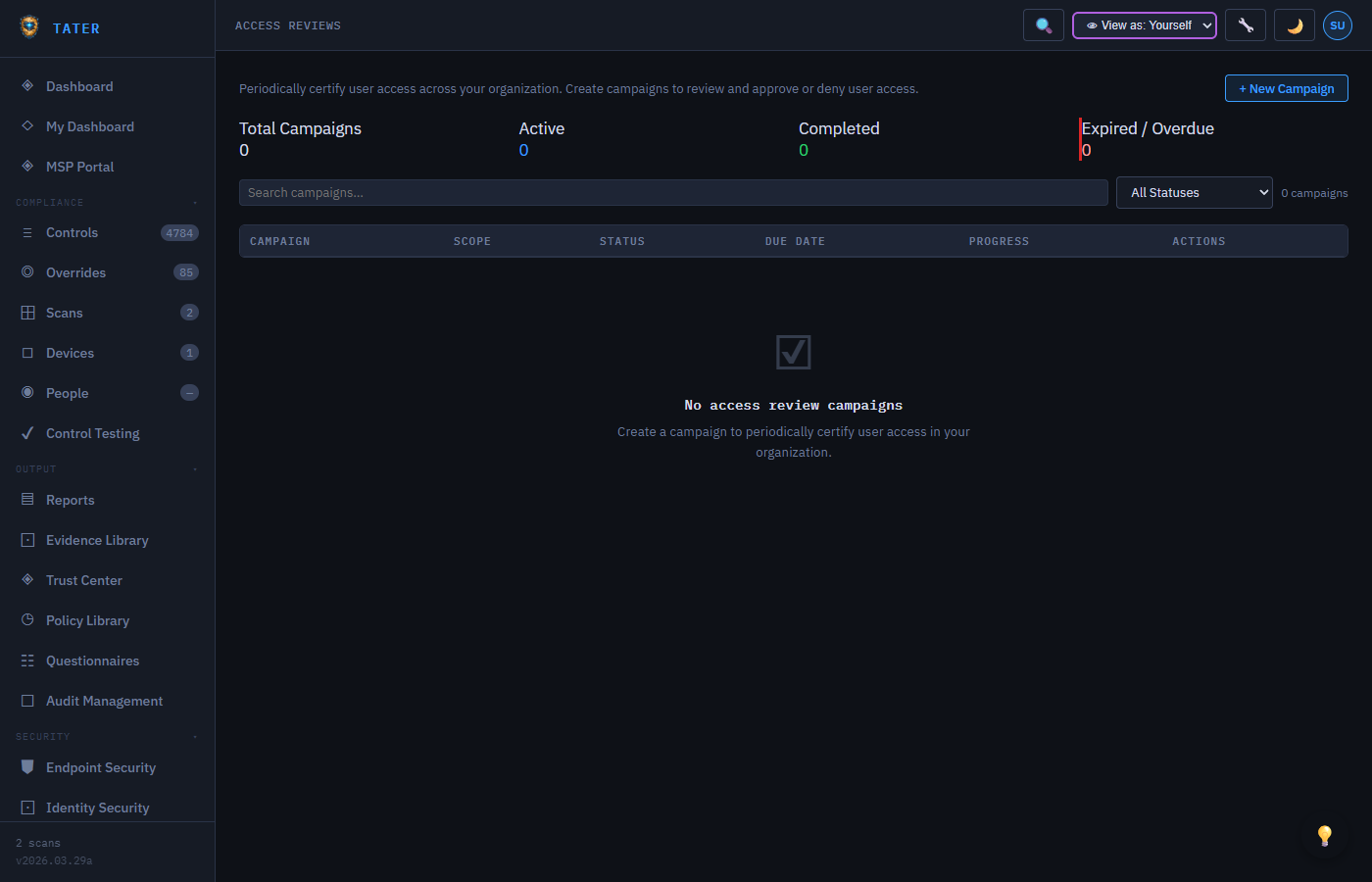
Conduct periodic access reviews to ensure users have appropriate access levels across your organization's systems.
Review Campaigns
- Navigate to Access Reviews and click New Review
- Define the scope: which systems, roles, or user groups to review
- Assign reviewers (typically managers or system owners)
- Set the review deadline
- Activate the campaign to begin the review process
UAR Engine — collect, certify, and the anti-rubber-stamp gate
The native User Access Review (UAR) engine turns an empty campaign into a real, evidenced certification. Open a campaign and use the UAR Engine panel:
- Collect from Entra — snapshots the org's real access state into granular review items using your stored Tenant Credential (no new permissions): privileged role assignments (active and PIM-eligible), guests (with sign-in staleness), and enterprise-app assignments. Re-collecting refreshes the snapshot and adds new items while keeping decisions you have already made.
- Custom sources — push access Entra reviews cannot cover (on-prem AD privileged groups, shared-mailbox delegates, vendor/third-party access, break-glass custody, even non-identity items like firewall or DLP exceptions) via the MCP
add_access_review_itemstool. TATER certifies it all under one evidence/control roof. - Certify per item — for each item the reviewer chooses Approve, Revoke, or Flag with a justification.
- Finalize (gated) — the anti-rubber-stamp gate blocks completion while any item is still undecided, unless you document an exception explaining why. This structurally prevents the “auto-applied without a human decision” failure mode that native Entra reviews allow.
When a cycle finalizes, every Revoke automatically spawns an Ops remediation task (remove the role, disable the guest, revoke the app assignment), and an immutable evidence record is written onto the mapped controls (SOC 2 CC6.1/6.2/6.3, CIS Controls 5/6, CISA SCuBA AAD) — feeding evidence-freshness and audit workpapers. The whole cycle can also be driven from an agent via the MCP tools collect_access_review, get_access_review_items, submit_access_review_item_decisions, and finalize_access_review. The Access Review (UAR) report in TATER Insights surfaces the human-decision rate and flags any campaign at risk of rubber-stamping.
More UAR capabilities
Four additional capabilities appear directly on the Access Reviews page and its detail view, documented in full in Reviews & Attestations:
- Orphaned-account discovery — a scan that diffs your Entra accounts against your employee roster so accounts with no matching person surface for review.
- Account-type offboarding profiles — the Revoke picker captures the intended end state per account type (employee, contractor, service, guest), so revocations carry the right offboarding action.
- “Keep & always re-review” — a carry-forward decision that keeps an item but flags it to reappear in every future cycle instead of being silently re-approved.
- Auditor decision-trail CSV export — a per-campaign export of every item, decision, justification, and timestamp for handing to an auditor.
Review Process
- Reviewers receive notifications with a list of users to review
- For each user, the reviewer can: Approve (keep access), Revoke (remove access), or Flag (escalate for further review)
- Reviewers can add comments explaining their decisions
- Bulk actions allow approving or revoking multiple users at once
Review Reports
- Completion rate tracking per reviewer
- Summary of approved, revoked, and flagged access
- Audit trail of all review decisions with timestamps
- Overdue reviews highlighted for escalation
Change Control
The Change Control module enforces a structured approval workflow before high-impact configuration changes are applied to your environment - providing a documented audit trail for every modification.
How It Works
- Automatic routing by impact: Low and Medium impact changes are auto-approved and logged immediately. High and Critical impact changes enter a Pending state and require OrgAdmin approval.
- Scan-detected changes: When a new scan result differs from the previous scan for a control, TATER automatically creates a change request of type
scan-detected- giving you an audit record without manual entry. - Manual change requests: Users can log planned changes (type
manual) before making changes, providing a pre-authorization paper trail. - MCP integration: The
list_pending_changesandcreate_change_requestMCP tools allow AI agents to query pending changes and log new ones as part of automated workflows.
Approving and Rejecting Changes
- OrgAdmin+ users see an Approve and Reject button on each pending change request
- Approval requires an optional Approval Note explaining the decision
- Approved changes record the approver's name, OID, and timestamp
- Rejected changes are closed with the rejection reason visible in the audit log
Change Request Fields
| Field | Description |
|---|---|
| Control ID | The TATER control this change is associated with (e.g., ENT_001) |
| Description | What is changing and why (minimum 10 characters) |
| Impact | Low, Medium, High, or Critical - determines auto-approval vs. manual review |
| Type | manual (user-initiated) or scan-detected (automatic from scan comparison) |
| Status | Pending, Approved, Rejected, or Auto-Approved |
CSV Export
All change requests can be exported to CSV for SOC 2, ISO 27001, or internal audit evidence. The export includes all fields, approval timestamps, and approver details.
Custom Control Frameworks
TATER's framework builder lets you define completely custom compliance frameworks alongside the built-in CIS, NIST, ISO, and SCUBA frameworks - enabling organizations to encode internal policy requirements, customer commitments, or proprietary standards into the same compliance engine.
Framework Builder
- Navigate to Governance & Risk → Custom Frameworks to open the builder
- Define domains (e.g., Identity, Data Protection, Network) as top-level groupings
- Add custom control definitions within each domain with threshold logic in the V2 threshold engine
- Map custom controls to standard frameworks (CIS, NIST 800-53, ISO 27001) for cross-framework gap analysis
Import / Export
- Export a custom framework as JSON for backup or distribution to other organizations
- Import a JSON framework package - useful for MSPs distributing a standard client framework across managed accounts
- Imported frameworks appear in the same framework list as built-in frameworks
Custom Control Definitions
Each custom control supports the same threshold types as the V2 engine:
- Boolean: Pass/fail based on a true/false value
- Compare: Numeric comparison (greater than, less than, equal to)
- Includes / Excludes: Check whether a value appears in a list
- Count: Evaluate the count of items against a threshold
- Regex: Pattern matching against string values
- Composite: Combine multiple thresholds with AND/OR logic
Regulatory Change Management
See the dedicated Regulatory Change Management guide for full documentation on tracking framework updates, assessing impact on your controls, and managing the transition to new requirements.
In brief, this module lets you:
- Curate a feed of regulatory and framework updates (CIS benchmark revisions, NIST updates, new CISA SCuBA baselines)
- Tag each change as New Requirement, Updated Requirement, Retired Requirement, or Clarification
- Set Effective Dates and track compliance deadlines on the GRC Calendar
- Link affected controls to the change record for gap analysis
Auditor Portal
The Auditor Portal provides time-limited, read-only access to compliance evidence packages for external auditors - without requiring auditors to have a TATER account.
Access Tokens
- Generate access tokens from Administration → Audit Management → Auditor Portal
- Each token is scoped to a specific framework (e.g., SOC 2, ISO 27001) and expires after a configurable period (1–90 days)
- Tokens can be revoked at any time before expiry
- Access events are logged (timestamp, IP address) for your audit trail
What Auditors See
- Framework compliance summary and control-by-control status for the scoped framework
- Evidence comments attached to each control (added via the AI Analyst or manually)
- Risk acceptances and overrides with justification text
- Policy documents in the Policy Library (with Published status)
- Your organization branding (logo, company name)
Audit Snapshots
Point-in-time snapshots capture compliance state at a specific moment - useful for year-end audits or regulatory submission deadlines. Snapshots are immutable records that preserve the compliance posture at the time of generation even as future scans change the live state.
Auditor Portal V2: Write-Back & PBC Workflow
The original (read-only) auditor portal is still supported. V2 extends it with optional write-back capabilities for full external-auditor engagement workflows. See the dedicated guides for the API surface; here's what's new at the user level:
- Audit-engagement scope. Tokens can now bind to a specific
auditId, not just a framework. Auditors only see findings for that engagement. - Write-back opt-in. Set
canWrite: trueon a token to enable auditor comments on evidence, finding-state transitions, and PBC requests. Default remains read-only for backwards compatibility. - Auditor comments. External auditors can post Q&A on evidence items, controls, findings, and audits without a TATER account. Comments are stored in the shared
Commentscontainer withsource: 'auditor-portal'for audit-trail attribution. - Finding state machine. Pending Review → Reviewed → Question → Closed. Auditors transition findings with optional notes; every change is audit-logged with
via: 'auditor-portal'. - PBC (Provided By Client) requests. Auditors raise requests for additional artifacts; your team responds in-app via
POST /api/pbc-requests/:id/respondwith optional attachments. Status: open → in-progress → fulfilled → closed.
Every action by an external auditor is tamper-evident in the audit log via the via='auditor-portal' attribution. Token validation uses a uniform 404 response for all failure modes (not-found / revoked / expired) to prevent token-existence enumeration.
POAM (Plan of Action & Milestones)
Federal / DoD ATO artifact tracking open weaknesses to closure. See the dedicated POAM guide for the full lifecycle, OMB A-130 / DoD eMASS .xlsx export, auto-populate from failing controls / exceptions / risks.
In brief:
- POA&M items track weakness → remediation → closure with scheduled completion dates, milestones, comments, point of contact
- Status: Open / In Progress / Completed / Risk Accepted / False Positive
- FIPS 199 impact rating: High / Moderate / Low
- Auto-populate from failing controls (latest scan), open exceptions, and high-severity risks. Deduplicated by sourceId.
- Three MCP tools expose this to AI agents:
list_poams,create_poam,auto_populate_poam.
NIST RMF Tracker
NIST Risk Management Framework (SP 800-37) 6-step lifecycle tracker: Categorize → Select → Implement → Assess → Authorize → Monitor. See the RMF section of the POAM guide for full coverage.
- FIPS 199 categorization (Confidentiality / Integrity / Availability impact)
- AO (Authorizing Official) information and ATO expiry monitoring
- Step-by-step progress with current step + completion dates for completed steps
- SSP (System Security Plan) generator with OSCAL 1.1 JSON and Word .docx export - see SSP section
Vendor Security Questionnaires
Track and respond to vendor security questionnaires (SIG, VSA, CAIQ, custom RFP security sections). Two MCP-first capabilities:
- AI auto-fill. Your Claude / Copilot session reads each question, gathers evidence from TATER (controls, ConfigDocs, wiki, policies), drafts an answer with inline citations. TATER never runs server-side LLM calls. See Questionnaire Auto-Fill Pattern.
- Knowledge base. Bulk-import historical Q&A pairs from prior submissions (PDF / DOCX / XLSX parsed by your AI). Future sessions search this KB FIRST - prior answers beat ConfigDocs/wiki for client questionnaires. KB entries get verified against current state:
current/stale-evidence(mapped controls now failing) /stale-doc(cited config updated) /stale-age(>1 year, no recent evidence) /unverifiable.
Workflow tools: list_questionnaires, get_questionnaire, draft_questionnaire_answer, update_questionnaire_status, import_questionnaire_kb, search_questionnaire_kb, verify_kb_entry.
Discussions & Evidence Attachments
GRC register records carry a combined Discussion and Attachments & Evidence panel so context and proof live on the record itself instead of scattered across email.
- Where it appears. The panel is on the Risk, Audit, and BCP/DR detail pages today. The underlying discussion and attachment APIs accept nine record types — risk, audit, BCP/DR, exception, control test, data classification, training campaign, regulatory change, and problem — so the remaining six are reachable now from an AI session or integration via the
add_thread_postandadd_evidence_commentMCP tools even before a UI panel ships. (Change Requests keep their own separate comment thread.) - Who can use it. Any org member at Viewer level or above can post to the discussion and upload evidence. An attachment can be deleted by whoever uploaded it or by an Admin.
- File rules. Up to 25 MB per file. Executable, script, and installer types (
.exe,.ps1,.bat,.msi,.js, …) and video files are blocked. Download links are short-lived (about one hour) and re-issued on demand. - Where files live. Uploads go to the shared blob attachment store, which honors your organization's bring-your-own-Azure-storage setting — see Attachment Storage.