 TATER
TATER Running Scans
TATER supports M365 cloud audits, Windows OS compliance scanning, and endpoint vulnerability scanning. This guide covers all scan types, execution methods, grouping, deduplication, and export.
Scan Overview
TATER evaluates compliance across three primary scan types:
| Scan Type | What It Covers | How It Runs |
|---|---|---|
| M365 Cloud | Exchange Online, SharePoint, Teams, Defender, Entra ID, Purview, Power BI, Power Platform | Azure Automation runbook or server-side trigger |
| Endpoint | MDE vulnerabilities, Intune compliance, CISA KEV, software inventory | Azure Automation runbook (daily schedule) |
| OS/Agent | Windows CIS benchmarks, macOS security controls, Linux security controls (20 controls each), registry, services, firewall, audit policy | TATER Agent on each endpoint |
Importing Scans
Scan results can be imported into TATER through several methods:
File Upload
Navigate to Scans
Go to the Scans page from the sidebar navigation.
Click Import Scan
Click the Import Scan button at the top of the page.
Select the JSON file
Browse to and select the scan results JSON file produced by the audit script or Azure Automation runbook.
Review and confirm
TATER validates the file format, checks for duplicates, and displays a summary before importing.
Automatic Upload (Runbooks)
When using Azure Automation runbooks, scan results are automatically uploaded to the TATER API using the POST /scans/upload endpoint. The runbook authenticates using an API key configured in Azure Automation variables.
# Runbook auto-uploads results to TATER API
# No manual import needed when using Azure Automation
# Configure these Automation Variables:
#   ApiBaseUrl = "https://api.tatersecurity.com"
#   ApiKey     = "your-api-key"
#   OrganizationId = "your-org-id"
Server-Side Cloud Scan Trigger
If you have stored tenant credentials in TATER, you can trigger a cloud scan directly from the browser without needing Azure Automation:
- Navigate to Scans and click Run Scan
- Select the tenant credentials to use (configured in Settings > Tenants)
- Choose the scan scope (full or specific applications)
- Click Start Scan to begin the server-side scan
- Monitor progress in the scan status panel; results appear automatically when complete
Server-side scans use the POST /scans/run API endpoint and require stored tenant credentials with appropriate Graph API permissions. See Settings > Tenants for credential configuration.
Scan Grouping
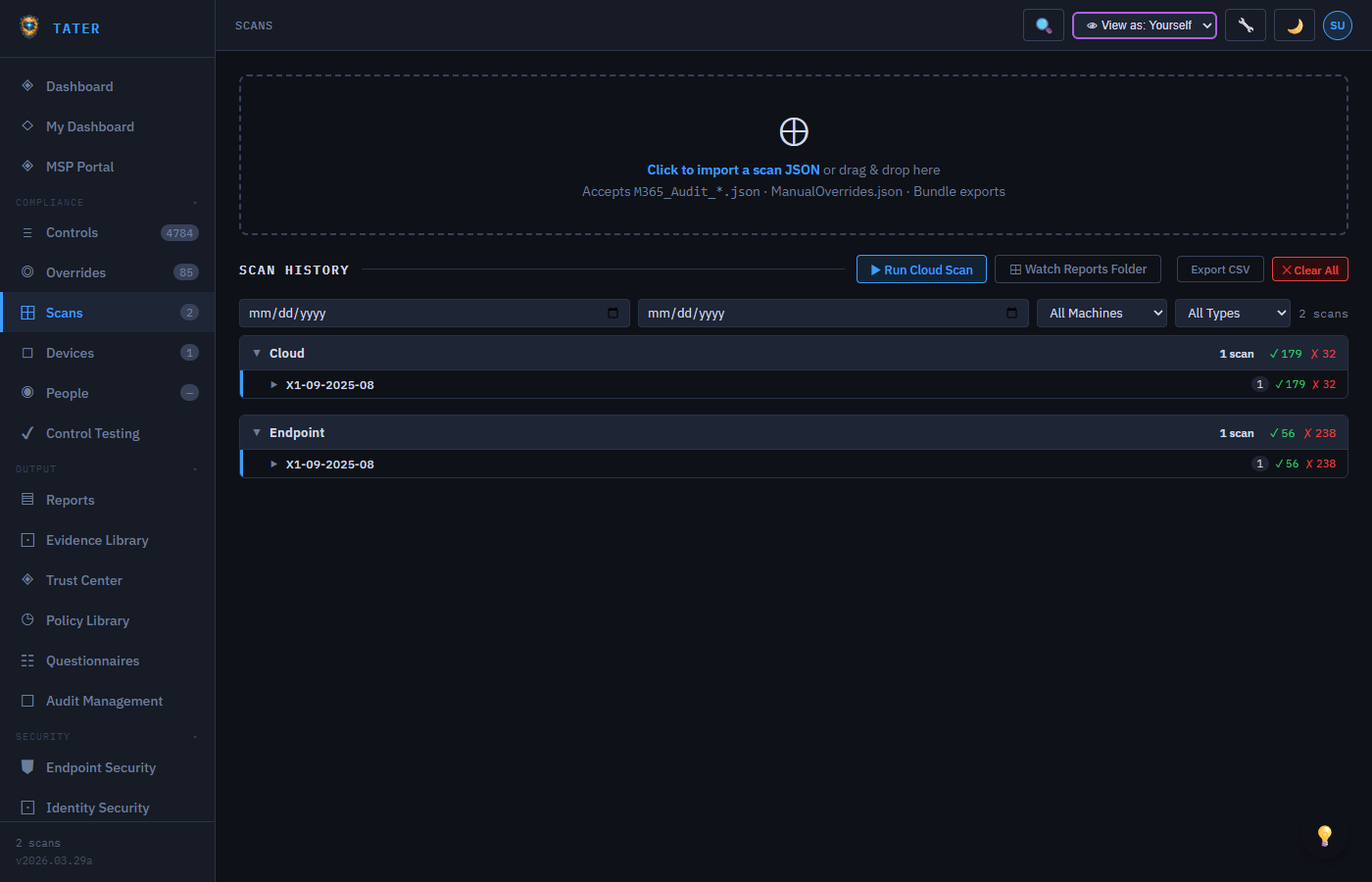
The Scans page always groups scans by type, with the following group order:
- Cloud Runbook -- Scans from Azure Automation runbooks
- Cloud -- Server-side or manual cloud scans
- Endpoint -- MDE/Intune vulnerability scans
- Speed Test -- Network speed test results from agents
Within each group, scans are sorted by the user-selected sort column (date, pass rate, etc.). The primary sort is always by type group, with user-selected sorting applied as a secondary sort within each group.
Each scan row displays the date (including time), scan type, machine name, framework, pass count, fail count, and compliance percentage.
Scan Comparison
Compare two scans side-by-side to identify what changed between scan cycles:
- Select two scans using the checkboxes on the scan list
- Click Compare in the toolbar
- The comparison view shows controls that changed status (Pass to Fail, Fail to Pass, new controls, removed controls)
- Use this to investigate compliance drift and understand the impact of configuration changes
Scan Deduplication
TATER automatically detects and consolidates duplicate scans at upload time. When a scan with identical results is uploaded:
- The system compares the scan summary plus 100 randomly-sampled controls from the existing scan
- If the data matches, the existing scan record is updated with an incremented
scanCountand updatedlastScannedAttimestamp - No new scan document is created, preventing database bloat from repeated identical scans
- The scan count badge shows how many times the same results were uploaded
Deduplication is particularly useful for scheduled scans that run daily or weekly. If your environment has not changed between scan cycles, the scan count increments without creating redundant records.
M365 Compliance Audit
The M365 cloud audit evaluates your Microsoft 365 tenant for compliance with CIS Benchmarks, CISA SCuBA baselines, and DISA STIGs across seven cloud application areas, plus the endpoint and Intune benchmark sets.
Running the Audit Script
M365-ComplianceAudit.ps1 is the same engine the Azure Automation runbook calls; running it by hand is for ad-hoc scans and troubleshooting. Two things to know before the first run:
- It is not a standalone script. At startup it dot-sources its
Modules\folder and loads every control fromControls\relative to its own location, so it must be run from the complete audit script folder. Lifting the single.ps1out of that folder makes it fail on the first module load. - Install the PowerShell modules once with
.\Install-Prerequisites.ps1 -Products AllCloud(or a narrower-Productslist). This pulls the Graph, Exchange Online, Teams, and SharePoint modules the audit depends on; it is safe to re-run.
Settings > Scan Commands in the app builds the command for you: choose a configured tenant, a product scope, and a framework filter, and copy the generated invocation. It shows the prerequisite and post-scan import steps alongside it.
# Basic usage - interactive authentication
.\M365-ComplianceAudit.ps1 -TenantId "your-tenant-id" -Products AllCloud -OutputPath "C:\ScanResults"

# App-only authentication with certificate
.\M365-ComplianceAudit.ps1 -TenantId "your-tenant-id" -AppId "app-client-id" -CertificateThumbprint "thumbprint" -Organization "contoso.onmicrosoft.com" -OutputPath "C:\ScanResults"

# Scope to specific products
.\M365-ComplianceAudit.ps1 -TenantId "your-tenant-id" -Products Exchange,SharePoint,Defender -OutputPath "C:\ScanResults"
Script Parameters
| Parameter | Type | Required | Description |
|---|---|---|---|
-TenantId | String | No | Azure AD tenant ID (GUID). Detected automatically from the signed-in session if omitted |
-OutputPath | String | No | Directory for report output files (default: the script's own directory) |
-Products | String[] | No | Product areas to audit. Cloud: EntraID, Defender, Exchange, Purview, Teams, SharePoint, Fabric. Endpoint: Intune, IntuneOffice, IntuneWin11, IntuneEdge, DefenderAV, Edge, Chrome, Windows11, WinServer (or WinServer2019/2022/2025). Aliases: All, AllCloud, AllEndpoint. Omit to choose interactively |
-AppId | String | No | App registration client ID for app-only certificate auth |
-CertificateThumbprint | String | No | Certificate thumbprint for app-only auth |
-Organization | String | No | Tenant domain (e.g. contoso.onmicrosoft.com). Required alongside app-only certificate auth for the Exchange Online and Purview connections, and used as the tenant identifier for Teams and SharePoint when it is supplied |
-FrameworkFilter | String | No | Limit to one source framework: CIS, SCuBA, or All (default) |
-LevelFilter | String | No | Limit to a CIS profile level: 1, 2, or All (default) |
-SharePointAdminUrl | String | No | SharePoint admin URL (e.g. https://contoso-admin.sharepoint.com). Required for SharePoint controls |
-NoInteractive | Switch | No | Skip the interactive product-selection menu (use in scheduled/automated runs) |
Applications Scanned
These are the cloud values accepted by -Products. The Control prefix column is the product code used on the control IDs themselves in the TATER catalog - it is not a value you pass on the command line.
-Products value | Application | Control prefix | Controls |
|---|---|---|---|
EntraID | Entra ID (Azure AD) | ENT | Identity, MFA, conditional access, privileged roles |
Exchange | Exchange Online | EXO | Mail flow, transport rules, auditing, DKIM/DMARC/SPF |
SharePoint | SharePoint & OneDrive | SPO | External sharing, guest access, DLP policies |
Teams | Microsoft Teams | SPT | Meeting policies, messaging, external access, guest settings |
Defender | Microsoft Defender | DEF | Safe Links, Safe Attachments, anti-phishing, preset policies |
Purview | Microsoft Purview | PUR | DLP policies, retention, sensitivity labels, audit logging |
Fabric | Microsoft Fabric & Power BI | FAB, PBI | Publish to web, resource key auth, external sharing |
-Products AllCloud expands to all seven above plus Intune. Endpoint benchmarks (Windows 11, Windows Server, Edge, Chrome, Defender AV, and the Intune benchmark sets) are separate -Products values - see the parameter table above for the full list.
The TATER catalog carries Power Platform controls (PPL prefix - environment security, DLP policies, connector restrictions), but M365-ComplianceAudit.ps1 has no Power Platform product and never opens that connection, so those controls do not run in a runbook or local audit. Use the Power Platform inventory and Power Platform integration for that surface instead.
Approximately 36 Teams controls that use Cs* cmdlets (e.g., Get-CsTeamsMeetingPolicy) require delegated authentication and cannot run in Azure Automation. These controls will permanently return "Skip" status in automated scans.
Skip vs. Manual vs. Not Applicable
Three different statuses can be applied automatically when a control cannot be evaluated by the scanner, and they mean different things:
| Status | Meaning |
|---|---|
| Skip | The scanner cannot run this check at all in automation — the Teams Cs* controls above are the main case, because they require delegated authentication. The control may still be checkable by hand. |
| Manual | The control needs human-supplied evidence or judgment (a documented process, a physical check, a policy review) — automation was never expected to evaluate it. Record the result yourself on the control. |
| Not Applicable (unlicensed) | The control checks an M365 feature your tenant isn't licensed for (e.g., Defender for Cloud Apps, E5 advanced auditing). TATER reads the tenant's provisioned service plans and marks these ⊘ N/A with a reason, excluding them from the compliance % — so an unreachable setting doesn't drag your score. |
The Not Applicable flip is conservative: only license-gated controls the scanner couldn't evaluate are affected, a real Pass/Fail result is never changed, and if service-plan data is unavailable for the tenant nothing is flipped — no false N/A.
Endpoint Vulnerability Scanning
The endpoint scan collects vulnerability, software inventory, and compliance data from Microsoft Defender for Endpoint (MDE) and Microsoft Intune.
Data Sources
- MDE Devices: Full device inventory with health status, risk score, and exposure level
- MDE Vulnerabilities: Per-device CVE data queried individually to avoid memory limits
- MDE Software: Installed software inventory with weakness counts
- CISA KEV: Known Exploited Vulnerabilities catalog cross-referenced with MDE CVEs
- Intune Devices: Managed device compliance status and configuration profiles
Schedule
The Scan-Endpoints runbook runs daily at 3:00 AM ET via the daily-endpoint-scan Azure Automation schedule. Results are automatically uploaded to the TATER API.
Speed Test
The TATER Agent includes a built-in network speed test that measures download bandwidth. Results are uploaded alongside compliance scan data.
- Uses self-hosted test files at
/Agent/speedtest/100mb.binand50mb.binhosted on the TATER marketing SWA - No dependency on third-party services (Cloudflare speed test caps at ~25MB)
- Results include download speed in Mbps and latency measurements
- Speed test scans appear in their own group on the Scans page
CSV Export
Export scan results to CSV format for use in external tools, SIEMs, or data warehouses:
- Navigate to a specific scan's detail view
- Click the Export CSV button in the toolbar
- The CSV includes all control evaluations with: Control ID, Title, Status, Severity, Framework, Application, Description, and Remediation guidance
You can also export from the Controls page to get a cross-scan view of all controls and their current status.
Scan data freshness & source health
TATER tracks how recently each scan source last produced data, so old results don't quietly masquerade as current compliance. Each source is rated one of four states:
- Fresh — the source ran within its expected cadence.
- Aging — overdue but not yet stale; worth a look.
- Stale — well past cadence; treat its data as unreliable until you re-scan.
- Never — the runbook for this source has never completed. This means no scan has finished yet, not that a connector or Entra permission is missing — that is a different signal (see the connector-skip banner in the Dashboard guide).
Cadence SLAs by source:
| Source | Runbook & schedule | Aging | Stale |
|---|---|---|---|
| Cloud (M365) | Scan-M365Cloud — weekly, Sun 2:00 AM ET | ≥ 7 days | ≥ 14 days |
| Endpoint | Scan-Endpoints — daily, 3:00 AM ET | ≥ 2 days | ≥ 4 days |
To remediate an aging/stale/never source, trigger its runbook (or check the last job's status for a failure) — see Scan Scheduling below. The health of every source is available from the GET /scan-source-health API (Viewer and above) and the get_scan_source_health MCP tool, so an AI session can answer “why is my compliance data old?” directly.
Scan Scheduling
Configure recurring scan schedules using the Azure Automation scheduling system:
| Schedule | Frequency | Time (ET) | Runbook |
|---|---|---|---|
weekly-m365-scan | Weekly (Sunday) | 2:00 AM | Scan-M365Cloud |
daily-endpoint-scan | Daily | 3:00 AM | Scan-Endpoints |
TATER also supports server-side scan scheduling through the GET/POST /scan-schedule API endpoints for organizations that prefer to manage schedules within the TATER application.
For detailed instructions on setting up Azure Automation runbooks for scheduled scanning, see the Azure Runbooks guide.