 TATER
TATER Reports Guide
Generate compliance reports for executives and auditors, manage evidence libraries, build audit packages, configure the Trust Center, and export data.
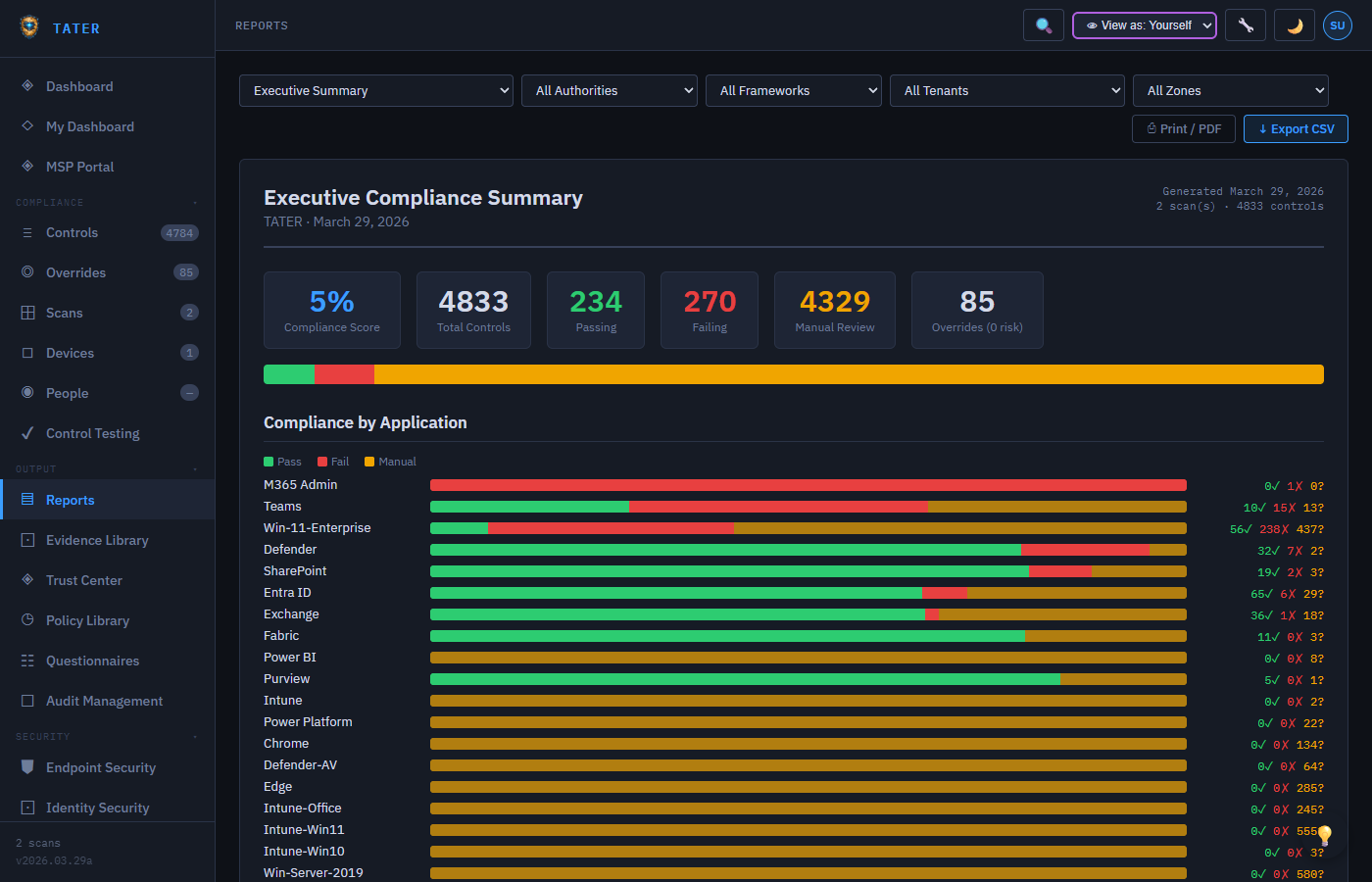
Report Types
TATER generates several types of compliance reports, all rendered client-side as printable HTML that can be saved as PDF:
| Report Type | Audience | Content |
|---|---|---|
| Executive Summary | Board, C-suite | High-level compliance scores, trend analysis, risk overview, key findings |
| Detailed Compliance | Security teams | Full control-by-control breakdown with status, evidence, and remediation guidance |
| Framework-Specific | Auditors | Compliance against a specific framework (CIS, NIST, ISO, etc.) with section narratives |
| Gap Analysis | Compliance officers | Failing controls prioritized by severity with remediation workplan |
| Remediation Workplan | IT operations | Actionable remediation steps sorted by priority with assigned owners |
| Fleet Report | IT management | Device compliance overview, vulnerability summary, software inventory |
| Client Audit Report (Leave-Behind) | Advisory clients | Branded standalone assessment deliverable with executive summary, findings, and framework crosswalk |
| Continuous Compliance Evidence (SOC 2) | SOC 2 auditors | Point-in-time reconstruction of control state across an audit window, with drift events |
| Compromise Assessment (Current-State Baseline) | Security teams, advisory clients | M365 account-takeover / BEC indicator baseline from current scan data |
Client Audit Report (Leave-Behind)
A branded, standalone document designed to hand a client after a (typically read-only) advisory assessment. It opens with an executive posture summary, groups findings by severity with plain-language remediation guidance, and closes with a framework crosswalk appendix mapping each finding to the standards it satisfies (with NIST highlighted). Remediation appears as guidance text only — never an executable trigger — so it pairs naturally with read-only audit mode as the advisory engagement deliverable. Export via Print/PDF, or as a dedicated CSV (severity, control, finding, remediation, effort, framework mappings) that stands alone without platform access.
Use it when: you are wrapping up an advisory or consulting engagement and need a professional leave-behind the client can act on without a TATER login.
Continuous Compliance Evidence (SOC 2)
Reconstructs each control's pass/fail state across every scan in an auditor-chosen date window, proving that controls held their state over a period rather than just at a point in time. The report flags every drift event (a control changing state) with a timestamp, evidences your monitoring cadence (the list of scan dates in the window), and attests exemption integrity (active risk acceptances and overrides with approver and expiry). Set the audit window with the from/to date pickers in the report. Export via Print/PDF or a dedicated CSV with per-control continuity and drift detail.
Use it when: a SOC 2 (or similar period-based) auditor asks you to demonstrate continuous control operation across the audit period, not just a current snapshot.
Compromise Assessment (Current-State Baseline)
A current-state M365 report that consolidates the account-takeover / BEC (business email compromise) indicators TATER already collects — over-permissioned OAuth apps, standing privileged access (permanent Global Admins, admins outside Conditional Access), guest admins, stale app credentials, external sharing, and recorded identity threats — into a "go check these" baseline. It also includes a manual BEC-indicator checklist (mailbox forwarding and inbox rules, risky sign-ins, MFA method changes, new app consents, mass mail/deletion) for the higher-signal checks that require mailbox or audit-log review beyond the configuration scan. No new scanning is performed; the report consolidates existing attack-surface, privileged-role, and ITDR data. Export via Print/PDF or a dedicated CSV (category, item, detail, severity).
Use it when: you suspect (or want to rule out) account compromise in a tenant, or you are establishing a security baseline at the start of an engagement.
Generating a Report
Navigate to Reports
Go to the Reports page from the sidebar navigation.
Select report type
Choose the report type from the available options (Executive Summary, Detailed, Framework-Specific, etc.).
Configure parameters
Select the framework scope, date range, and any filtering criteria. Choose which applications to include.
Generate and review
Click Generate Report. The report renders in a new view with your organization's branding.
Export
Use the browser's print function (Ctrl+P) to save as PDF, or click Export CSV for raw data export.
Evidence Library
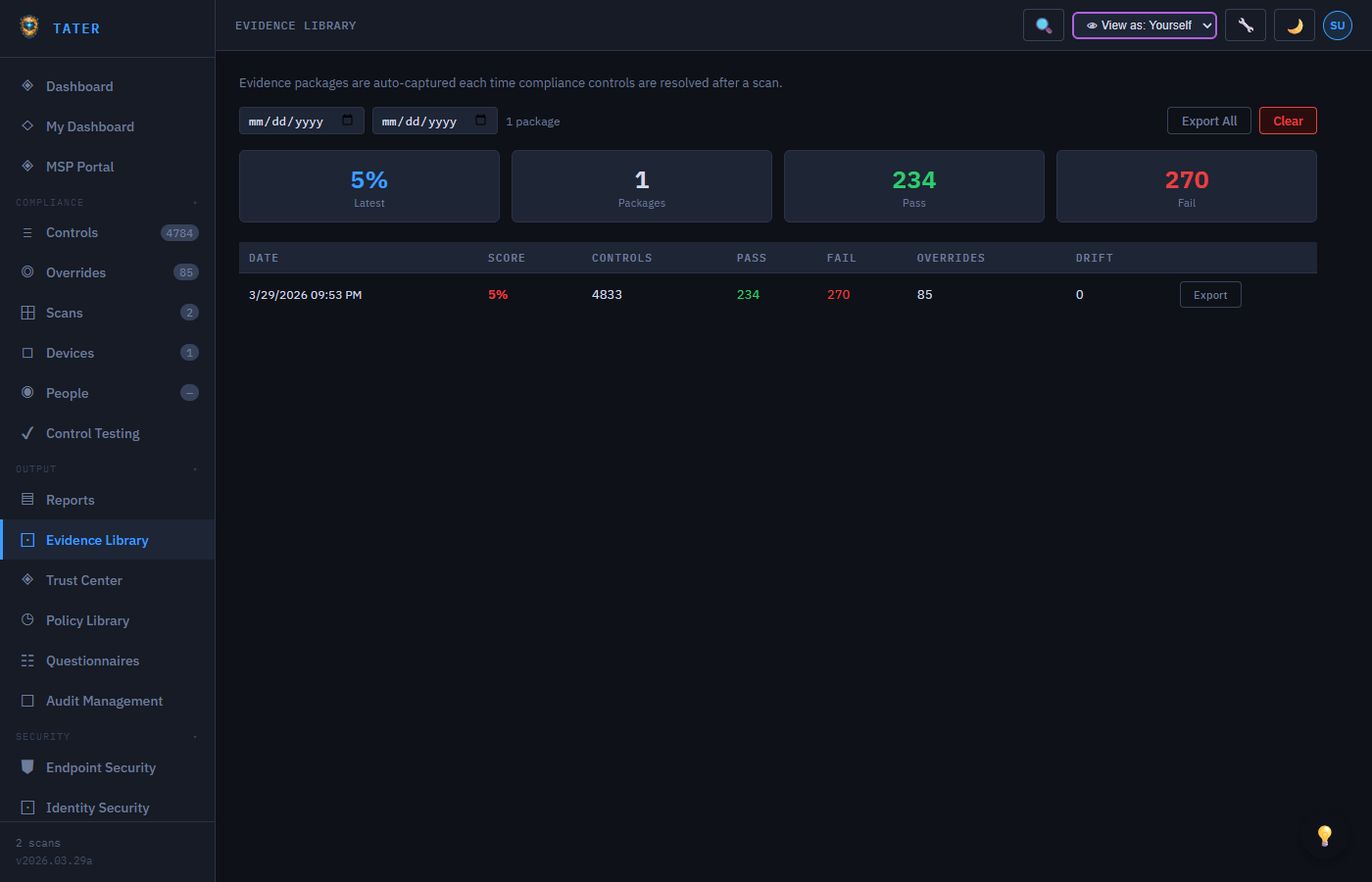
The Evidence Library provides a central repository for audit evidence organized by control and framework:
Key Features
- Automatic Evidence: Scan results are automatically captured as evidence for evaluated controls
- Manual Evidence: Upload documents, screenshots, or other files as supporting evidence
- Evidence Linking: Link evidence items to specific controls across multiple frameworks
- Version History: Track changes to evidence over time
- Expiry Tracking: Set evidence validity periods and receive alerts when evidence expires
- Bulk Export: Export all evidence for an audit engagement as a ZIP package
Adding Evidence
- Navigate to the Evidence page
- Click Add Evidence
- Select the control(s) this evidence supports
- Upload the file or enter a description for manual evidence
- Set the evidence type (Screenshot, Document, Configuration, Log, Attestation)
- Optionally set an expiry date for time-sensitive evidence
Audit Package
Build comprehensive audit packages that combine reports, evidence, and narratives for external auditors:
- Select the framework and scope for the audit package
- Include compliance reports, evidence library items, and standard narratives
- Generate a table of contents with cross-references
- Export as a downloadable package for auditor review
Trust Center
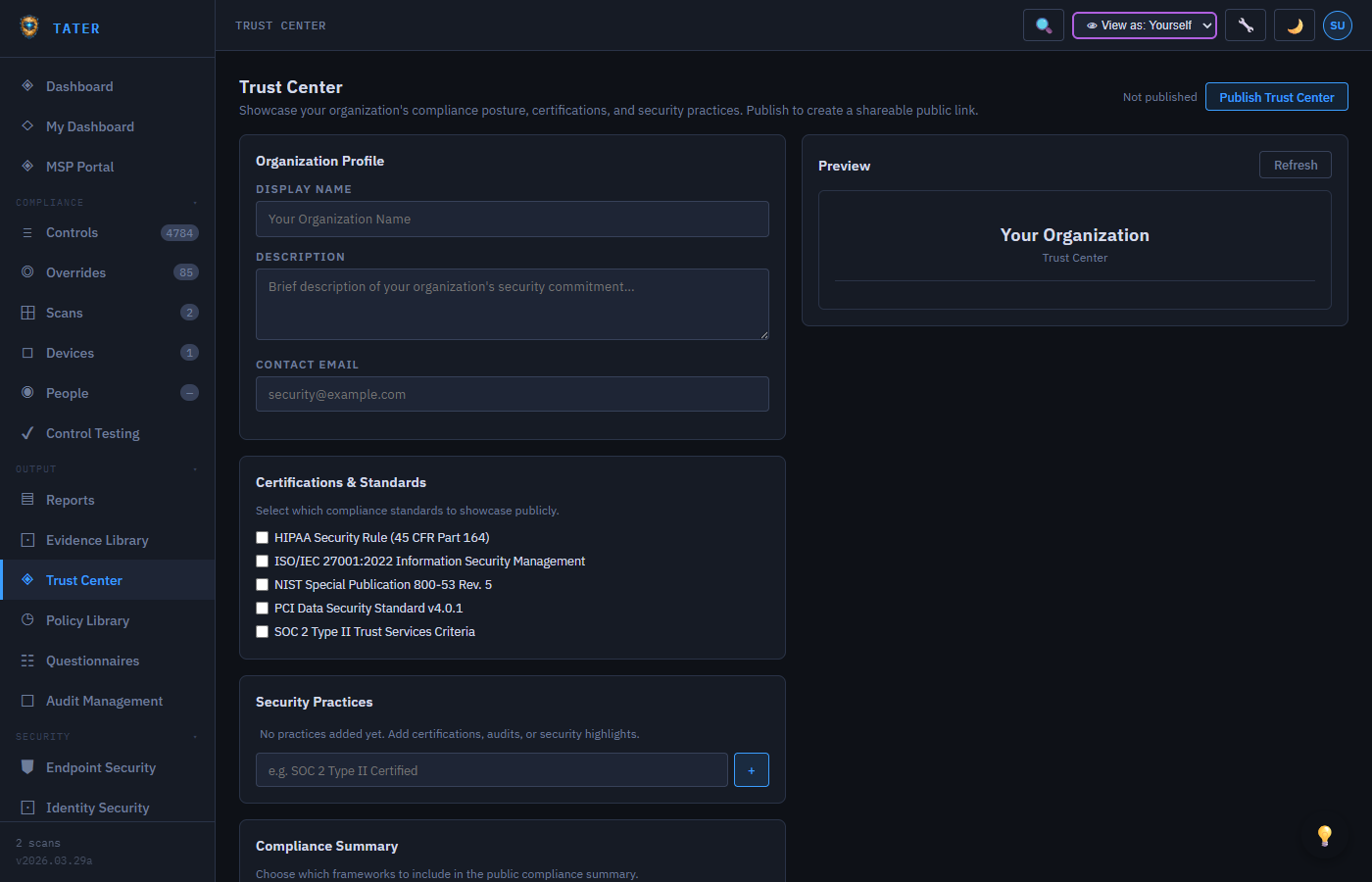
The Trust Center is a public-facing compliance posture page for sharing with customers, partners, and prospects:
Features
- Framework Scores: Compliance percentage for each active framework
- Certifications: Display earned certifications with audit dates
- Security Practices: Summary of implemented security controls
- Custom Content: Add organization-specific security information and FAQs
- Embeddable Widget: Generate an embeddable compliance badge for your website
Compliance Widget
Generate a lightweight compliance widget that can be embedded on your organization's website:
- Navigate to Trust Center settings
- Click Generate Widget
- Customize the widget appearance (frameworks to show, color scheme)
- Copy the embed code (HTML snippet)
- Paste the embed code into your website's HTML
CSV Export
Export compliance data to CSV format for use in external tools, SIEMs, or data warehouses:
- Scan Results CSV: All control evaluations from a specific scan
- Controls CSV: Current status of all controls across all frameworks
- Overrides CSV: Risk acceptance register with justifications and expiry dates
- Devices CSV: Fleet inventory with compliance scores and MDE status
- Vulnerabilities CSV: CVE list with severity, CISA KEV flags, and affected devices
CSV exports can be automated through the TATER API. Use GET /scans/:id?format=csv to retrieve scan results in CSV format programmatically.