 TATER
TATER Collaboration Tools
Work together on compliance activities with task tracking, AI-assisted questionnaires, a community feedback board, and a policy library with PDF export.
Task Tracking
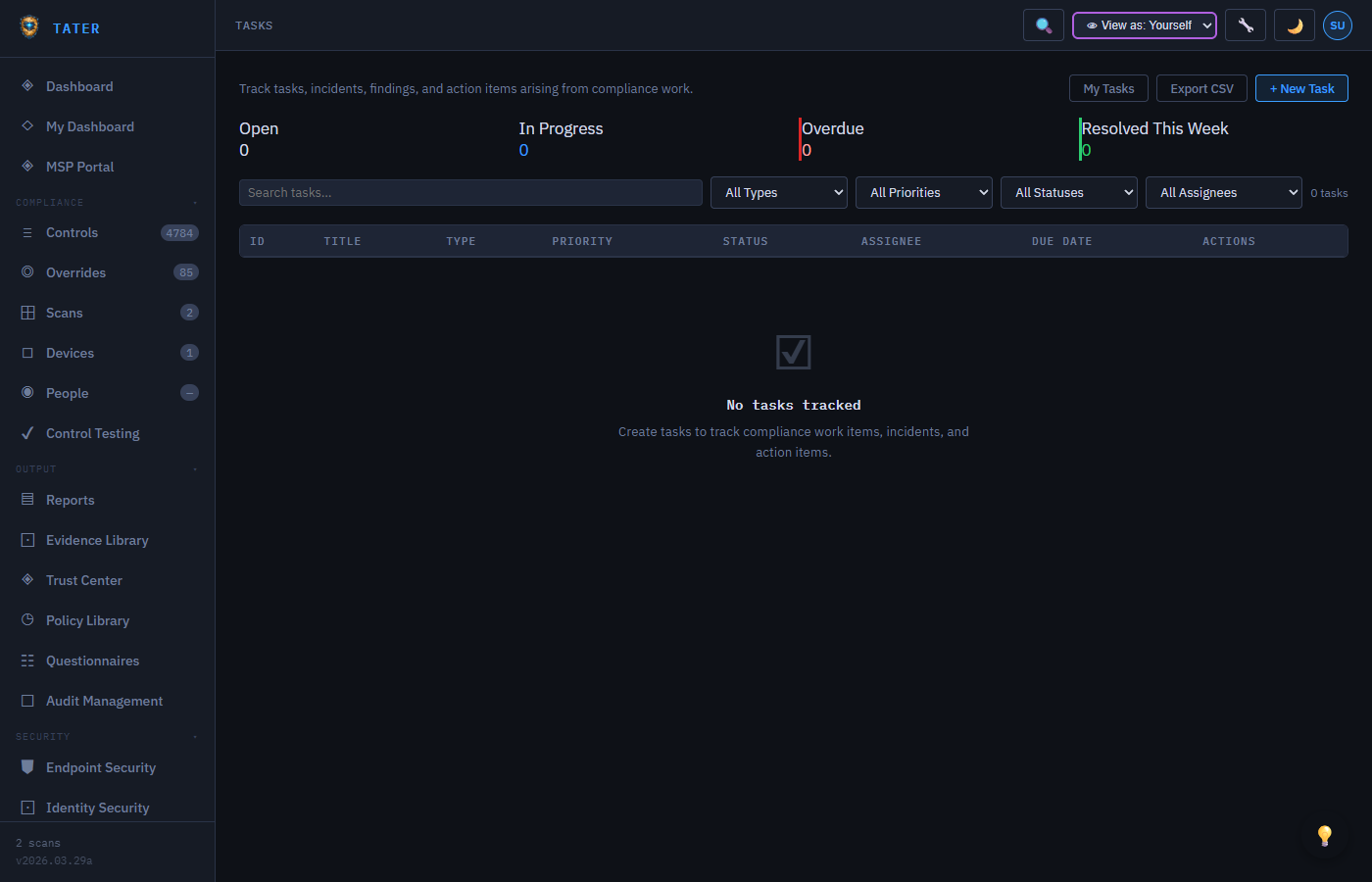
The task tracking system provides a centralized view of all work items across compliance, security, and GRC modules.
Overview
- Unified View: All tasks across modules (remediation, audit findings, control assignments, evidence requests) in one place
- My Tasks: Personalized view showing only tasks assigned to you
- Team View: See workload distribution across team members
- Kanban Board: Drag-and-drop task management with customizable columns
Creating Tasks
Click New Task
Tasks now live in TATER Ops (the unified task system across the platform - previously TATER Security had its own separate task system, which has been consolidated). Open ops.tatersecurity.com → Tasks and click New Task to create a standalone task, or create tasks directly from controls, audit findings, or risk items in TATER Security - those create-task buttons file into the same unified Ops task system.
Define the task
Enter a title, description, priority (Critical, High, Medium, Low), and category.
Assign and schedule
Assign the task to a team member and set a due date. Optionally link the task to specific controls, risks, or audit findings.
Track progress
Update task status as work progresses: To Do, In Progress, In Review, Done. Add comments and attachments to document progress.
Automatic Task Generation
Tasks are automatically generated from various TATER workflows:
- Failed Controls: New failing controls can auto-generate remediation tasks
- Audit Findings: Audit findings create corrective action tasks
- Evidence Requests: Evidence collection requests appear as tasks for control owners
- SLA Breaches: Overdue remediation deadlines generate escalation tasks
- Exception Renewals: Expiring exceptions create renewal review tasks
Notifications
- Email notifications when tasks are assigned to you
- Reminders for upcoming due dates (7 days, 3 days, 1 day before)
- Escalation notifications for overdue tasks
- Updates when task status changes or comments are added
- Channel notifications on task creation - fan out to staff email and a Microsoft Teams channel whenever a new task is opened by the endpoint agent, an MCP/AI agent, the web UI, or the public intake portal. Configure per org in TATER Manage → Connections → Task Notifications. See the Task Notifications Setup guide for the Power Automate Workflow steps, the DLP-block workaround, and the Adaptive Card format.
Questionnaires
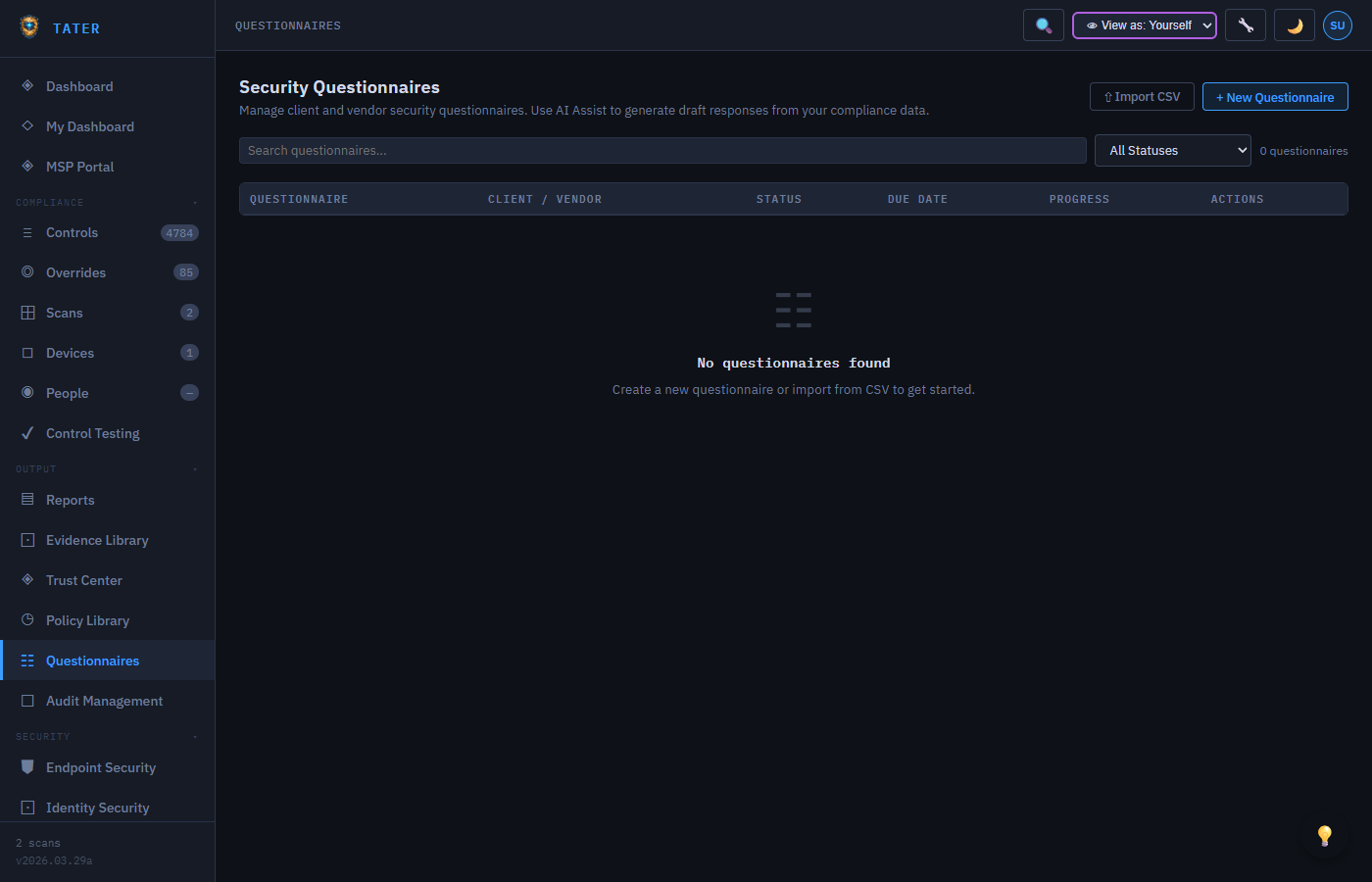
Create and distribute compliance questionnaires with AI-assisted response generation for vendor assessments, customer inquiries, and internal evaluations.
Building Questionnaires
- Navigate to Questionnaires and click New Questionnaire
- Choose a template (vendor security, customer compliance, internal audit) or start from scratch
- Add questions organized by section. Supported question types:
- Yes/No: Simple boolean with optional evidence upload
- Multiple Choice: Select one or many from predefined options
- Text: Free-form text response
- File Upload: Request supporting documentation
- Rating: Numeric scale (1-5 or 1-10)
- Configure scoring rules and passing thresholds
- Save the questionnaire as a reusable template
AI-Assisted Responses
TATER can auto-populate questionnaire responses based on your existing compliance data:
- Auto-fill from scans: Questions about specific controls are answered using scan results
- Evidence linking: Relevant evidence from the Evidence Library is automatically suggested
- Narrative generation: AI generates narrative responses for descriptive questions based on your compliance posture
- Review required: All AI-generated responses are marked for human review before submission
Use the AI auto-fill feature to draft responses to common vendor security questionnaires, then review and customize before sending. This can reduce questionnaire completion time significantly.
Distributing Questionnaires
- Internal: Assign questionnaires to team members or departments
- External: Generate a shareable link for vendors or customers to complete
- Tracking: Monitor response progress, send reminders for incomplete questionnaires
- Scoring: Automatic scoring against configured thresholds with pass/fail determination
Feedback Board
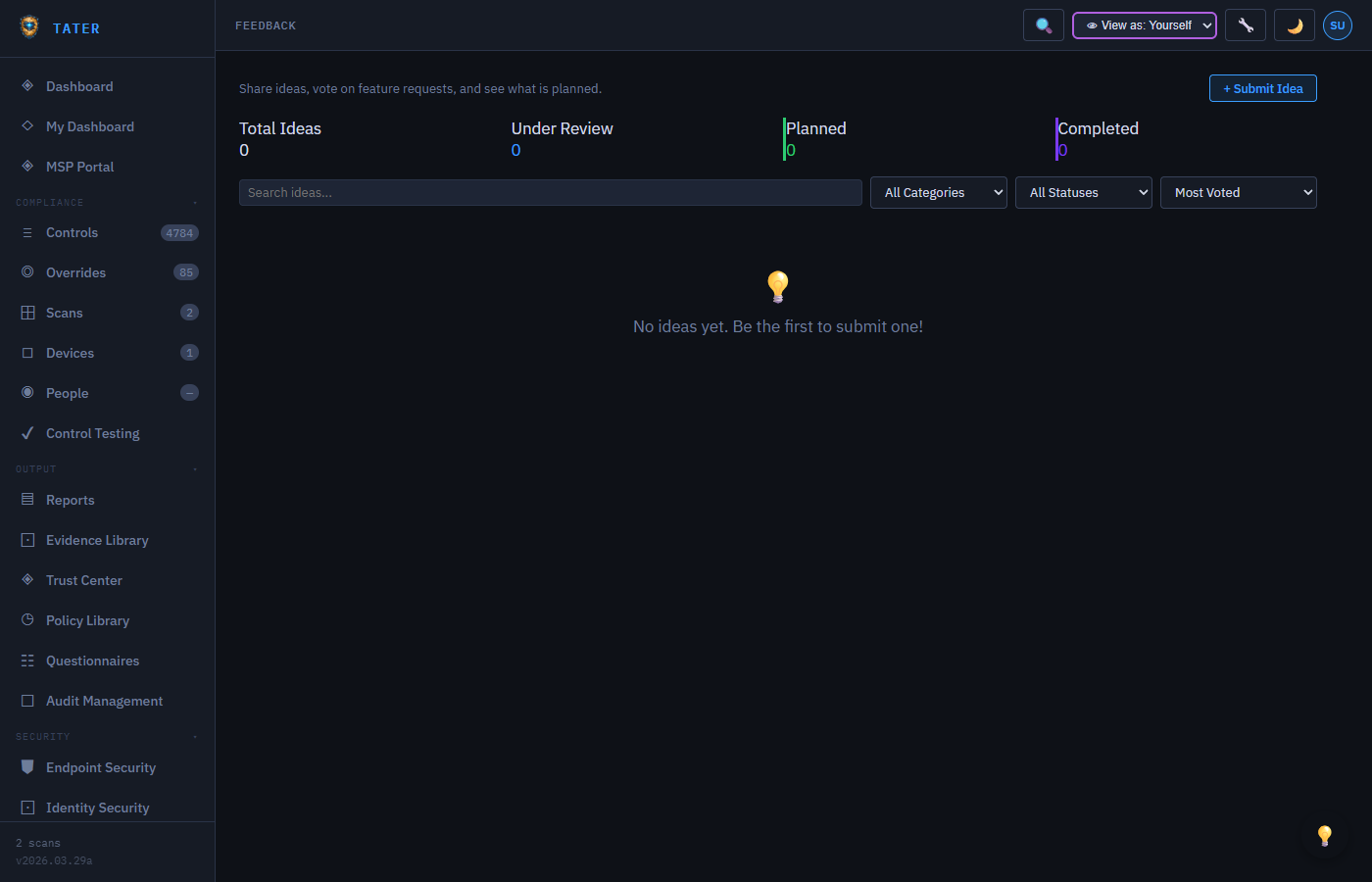
The feedback board provides a UserVoice-style system for collecting and prioritizing feature requests and improvement suggestions.
Features
- Submit Ideas: Any user can submit feature requests or improvement suggestions with a title and description
- Vote: Upvote or downvote existing ideas to signal priority. Each user gets one vote per idea.
- Categories: Organize feedback by category (Feature Request, Bug Report, Improvement, Question)
- Status Tracking: Admin can set status: New, Under Review, Planned, In Progress, Completed, Declined
- Comments: Add context, use cases, or implementation suggestions on any feedback item
- Admin Controls: OrgAdmin and SuperAdmin can manage statuses, merge duplicates, and respond to feedback
Submitting Feedback
- Navigate to the Feedback page or click the feedback widget on the dashboard
- Click New Idea
- Enter a title and detailed description of your suggestion
- Select a category
- Submit -- your idea appears on the board for others to vote on
Feedback submissions are protected against field injection attacks. Input is sanitized before storage and display. Write rate limits are enforced per user tier to prevent abuse.
Policy Library
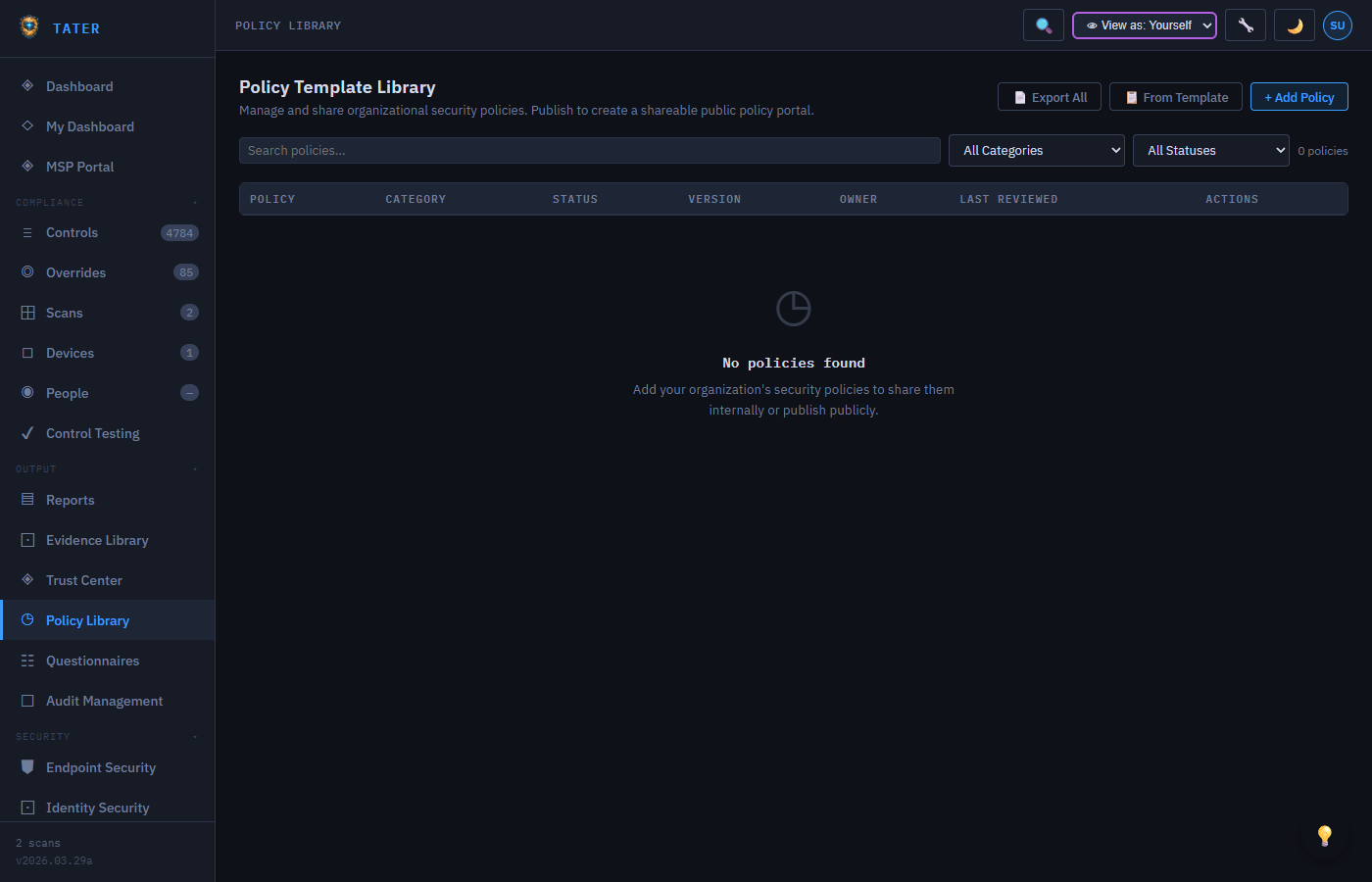
Create, manage, and export security policy documents using pre-built templates or from scratch.
Template Browser
TATER includes 21 pre-built policy templates. The template browser provides:
- Category filtering: Filter templates by category (Security, Privacy, Operations, Compliance)
- Difficulty rating: 1-3 dots indicating template complexity
- Framework mapping: Which compliance frameworks each template helps satisfy
- Recommended badge: Highlighted templates recommended for your organization's compliance needs
- Search: Full-text search across template titles and descriptions
Template Variable Engine
Templates use a {{varName}} placeholder syntax with typed variables:
| Variable Type | Description | Example |
|---|---|---|
| text | Single-line text input | Organization name, CISO name |
| date | Date picker | Effective date, review date |
| select | Dropdown selection | Review frequency, classification level |
| textarea | Multi-line text input | Policy scope, additional requirements |
| number | Numeric input | Retention period, password length |
Common values (organization name, CISO, review period) are cached across templates during your session. When generating a second policy, previously-entered values are pre-filled, saving time.
Generating a Policy
- Click From Template on the Policies page
- Browse or search the template library
- Select a template and click Use Template
- Fill in the variable form -- variables are grouped by category (Organization, Document Control, Policy Details)
- Preview the generated document in the Markdown preview panel
- Click Save to save as a draft, or Export PDF for a formatted document
PDF Export
Export policies as professionally formatted PDF documents with:
- Cover Page: Organization logo, policy title, effective date, and version
- Table of Contents: Auto-generated from section headings
- Body: Full policy content with formatted headers, lists, and tables
- Back Page: Organization branding and contact information
- Organization Branding: Uses your configured logo, company name, and accent colors
Managing Policies
- Status: Draft, Under Review, Approved, Published, Archived
- Version Control: Track policy revisions with version numbers
- Organization Scope: Policies are scoped to individual organizations in multi-org environments
- Re-generation: Saved policies retain their
templateIdandtemplateVars, allowing re-generation with updated variables
GRC Calendar
The GRC Calendar now lives in TATER Manage → Calendar (single canonical location, consolidated from earlier per-app placement). It provides a unified timeline view of all compliance obligations, deadlines, and scheduled activities across every GRC module - so nothing falls through the cracks between quarterly audits, annual reviews, and ongoing control tests. Sister apps can deep-link into specific records (audit deadlines, override expirations, BCP/DR test windows, training due dates) but the calendar surface itself is in Manage.
What Appears on the Calendar
The calendar aggregates due dates and scheduled events from across the TATER platform:
| Source | What's Shown |
|---|---|
| Access Reviews | Review campaign due dates and overdue reviews |
| Control Tests | Scheduled test execution dates and overdue tests |
| Exceptions & Waivers | Exception expiry dates requiring renewal |
| BCP/DR Plans | Scheduled test exercises (tabletop, simulation) |
| Security Training | Campaign completion deadlines |
| Vendor Assessments | Scheduled periodic vendor risk reviews |
| Regulatory Changes | Compliance deadlines for new requirements |
| Tasks | Task due dates (when a due date is set) |
| Audits | Planned audit start and end dates |
Calendar Views
- Month view: Traditional grid showing all events by date - best for spotting clusters of deadlines
- List view: Chronological list of upcoming obligations - best for planning the next 30/60/90 days
- Category filter: Show/hide event types (Access Reviews, Control Tests, Exceptions, etc.) to focus on specific areas
Deadline Alerts
- Events within 7 days are highlighted in amber
- Overdue events (past due date with no completion) are highlighted in red
- The Tasks notification badge in the topbar reflects upcoming calendar obligations as well as open tasks
- Configure notification reminders for specific event types in Settings → Notifications
Adding Events
Events appear automatically based on due dates set in each GRC module. To add a standalone calendar event (meeting, deadline, milestone), use Tasks with a due date - these appear on the calendar as task items.
TATERpedia
TATERpedia is a Wikipedia-style platform-shared wiki for generic process knowledge that any TATER customer can contribute to and benefit from. Unlike the TATER AI Analyst's per-org ConfigDocs (which capture your specific network topology and configurations), TATERpedia articles describe how to use TATER features, general remediation techniques, diagnostic decision trees, and security methodology - content that is true regardless of which organization you're in.
Article Structure
Every TATERpedia article consists of:
- Title - the control name, capability, or topic being documented
- Body - Markdown with headers, code blocks, and lists; up to 50,000 characters
- Tags - up to 10 keyword tags for filtering (e.g. "m365", "remediation", "cis", "entra-id")
- Category - scoped to the article's primary context:
control,application,framework, ortopic - Related Links - cross-references to other TATERpedia pages, Help docs, and external references
- Scope - every article lives in the shared platform partition, visible to all authenticated users
Contributing Articles
Any user with Auditor+ role can create and edit TATERpedia articles. Navigate to TATERpedia in the sidebar and click + New Article. Best-practice guidelines for article quality:
- Write for a reader who has never seen the control or feature before - assume minimal prior knowledge
- Lead with what the article covers, then why it matters, then how to address it
- Include at least one code block for remediation articles (PowerShell, CLI, or configuration snippet)
- Add 3–8 tags covering both the product area (e.g., "exchange-online") and the compliance framework (e.g., "cis-benchmark", "scuba")
- Link to related articles using the Related Pages section at the end - cross-linking improves discoverability
- Cite the compliance standard control ID in the title or first paragraph when the article is control-specific
Automatic Seeding
TATERpedia is seeded nightly from your organization's public comment threads. When a thread about a control, application, or framework accumulates substantial discussion, the platform uses that knowledge to draft a TATERpedia stub article that your team can then review, expand, and publish. You can also ask the AI Analyst to author TATERpedia articles directly via the author_wiki_page MCP tool or by prompting it: "Write a TATERpedia article about [topic]."
Searching TATERpedia
Use the search bar at the top of the TATERpedia page to find articles by full-text content, title, or tag. The Category dropdown filters by control, application, framework, or general topic. Articles are ranked by relevance and recency. You can also ask the AI Analyst "Find TATERpedia articles about Conditional Access" - it will use the search_wiki MCP tool to retrieve and summarize matching pages.
See also: Blog → TATERpedia: The Living Wiki That Writes Itself ↗